




Footer
Set bottom block with navigation links and information
5.3K +
Installs
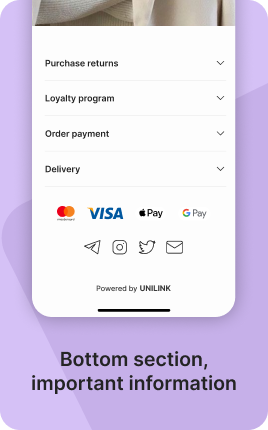
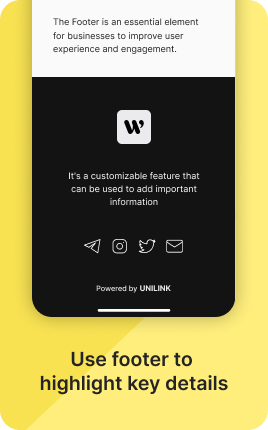
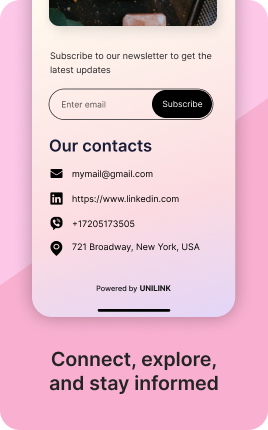

The Footer Block is the bottom-of-page section of your link in bio — typically containing legal links (Privacy Policy, Terms of Service), copyright notice, secondary navigation, and small print. It is the convention every visitor expects to find at the bottom of any page, and including it signals professionalism even if visitors rarely click into it. The Footer Block stays visually understated so it doesn't compete with the primary content above.
Use cases
Concrete patterns we see UniLink creators apply most. Pick the closest to your situation as a starting point.
Legal compliance and disclosures
Privacy Policy, Terms of Service, Cookie Policy, GDPR consent. Required for businesses operating in regulated regions; the Footer Block keeps these accessible without cluttering the main page.
Copyright and credit
© 2026 Your Brand, all rights reserved. Photo credits, illustration credits, font licenses where required. The Footer Block is the home for these.
Secondary navigation
Links to less-prominent pages — About, Press, Careers, FAQ, Contact. These don't deserve top-level Links Block placement but should be findable for visitors who want them.
Subtle social or contact links
For brands where the primary CTA is something else (book, buy, subscribe), social profile links can live in the footer instead of competing with the main action above.
How to add this block
From marketplace install to live on your link in bio. Each step takes seconds; the writing is what takes time.
- 1
Add the block from the marketplace
Open your UniLink dashboard, drag the block to the position where it makes the strongest impact — typically near the top of the page so visitors see it immediately.
- 2
Upload or link your media
Upload directly from your device or paste a URL (YouTube, Vimeo, Instagram). For uploads, UniLink optimizes file size and format automatically — no manual encoding needed.
- 3
Configure layout and aspect ratio
Pick the aspect ratio that matches your media — 16:9 for landscape video, 9:16 for vertical, 1:1 for square. Mismatched aspect ratios crop or letterbox awkwardly.
- 4
Add caption or call-to-action
A short caption tells visitors what they're looking at and why it matters. Pair it with a CTA button if the media should drive clicks elsewhere.
- 5
Publish and check on mobile
Most link-in-bio traffic is mobile. After publishing, open the page on your phone — media that looks great on desktop sometimes loads slowly or crops poorly on mobile.
Best practices that move the needle
Small changes in writing or curation that consistently improve conversion.
Optimize for mobile first
Over 80% of link-in-bio traffic is mobile. Test on a real phone, not just browser dev-tools. Slow loads or weird cropping on mobile is the fastest way to lose visitors.
Compress before uploading
A 50MB video that looks identical at 5MB just costs your visitors more bandwidth. Compress with Handbrake, ffmpeg, or a free online tool before upload.
One strong piece beats five weak
Tempting to fill the block with everything you have. Resist — one excellent video or banner outperforms five mediocre ones. Curate ruthlessly.
Captions for accessibility and silent autoplay
Most mobile users browse with sound off. Add captions or subtitles so the message lands even without audio. This also improves SEO via transcripts.
Frequently asked questions
What is a Footer Block in a link in bio?
A Footer Block is the section at the bottom of your link in bio for legal links, copyright, secondary navigation, and small print. It's deliberately understated so it doesn't compete with the main content but provides expected page-anchoring at the bottom.
Is it required?
Not strictly, but for businesses with legal obligations (Privacy Policy in EU/California/most jurisdictions) it's effectively required. Personal creators with no legal obligations can skip it without consequence.
How is it different from the Links Block?
Links Block is for primary navigation — high-attention buttons that drive action. Footer Block is for low-attention but expected links — legal, copyright, secondary nav. Footer styling is intentionally subdued; Links styling is prominent.
Where does the Footer Block go?
At the very bottom of the page, after all other content. By convention, footer is always last; visitors expect this and the Footer Block defaults reflect that. Placing the footer mid-page breaks the convention and confuses navigation.
Is the Footer Block free on UniLink?
Yes. The Footer Block is included on every UniLink plan, including the free tier.
Related blocks
Pair this block with these to build a complete page on your link in bio.
Ready to add this block?
Drop it on any UniLink page in under a minute. Customize copy, visuals, and order without touching code.
Add to UniLink — free