




Form
Collect responses from visitors via customizable input fields
7.3K +
Installs
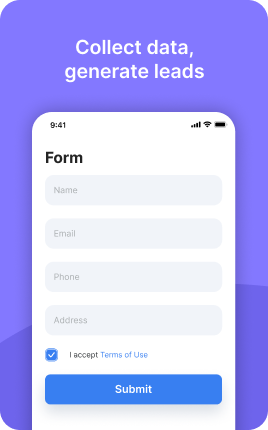
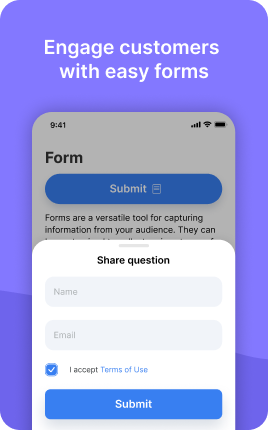
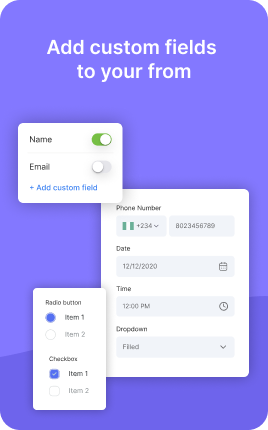
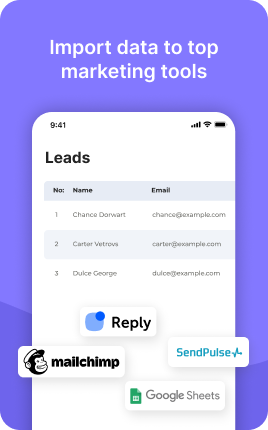
The Form Block is the workhorse of any link in bio that needs to capture information from visitors — email signups, contact requests, feedback, RSVPs, lead qualification. It accepts text, email, phone, multi-line, dropdown, and checkbox fields, and pipes submissions into the destinations that matter: Mailchimp, Reply, Google Sheets, your CRM via webhook, or just an email to your inbox. The trick to making the Form Block actually convert is restraint — every extra field cuts conversion by 5-10%, so collect only what you need now and follow up for the rest later.
Use cases
Concrete patterns we see UniLink creators apply most. Pick the closest to your situation as a starting point.
Email newsletter signup
Two fields, one button: email and "Get the weekly newsletter". Pipe to Mailchimp, Reply, ConvertKit, or whatever you use. The simplest version of the Form Block converts 3-5x better than long signups, even when you sacrifice "first name" — collect that later via a welcome email.
Lead capture for services
Coaches, agencies, consultants — collect name, email, project type, and budget range to qualify leads before a discovery call. The Form Block routes qualified leads straight to your inbox or CRM, so you only spend time on prospects worth a conversation.
Event RSVP and registration
Workshops, webinars, meetups, parties — the Form Block collects RSVPs with optional dietary restrictions, plus-one count, or session preference. Submissions go to your event spreadsheet automatically, so you have a live attendee list without manual data entry.
Feedback and feature requests
Ask your audience what they want next. A short Form Block with one or two questions captures product feedback, content topic requests, or NPS-style ratings. Pipe responses to a Sheets tab and you have a research database that compounds over time.
How to add this block
From marketplace install to live on your link in bio. Each step takes seconds; the writing is what takes time.
- 1
Add the block from the marketplace
In your UniLink dashboard, place the block where you want to capture data — usually near the call-to-action or at the end of the page.
- 2
Choose the fields you actually need
Every field added drops conversion ~5-10%. Ask for name and email; collect everything else later via follow-up email. Long forms feel like work.
- 3
Connect a destination
Pipe submissions to email, Google Sheets, Mailchimp, or your CRM via webhook. Without a destination, submissions go nowhere — connect it before going live.
- 4
Write the button text that moves people
Replace the default "Submit" with something specific: "Get my free guide", "Send my quote", "Reserve my spot". Generic buttons convert worse across every form.
- 5
Publish and confirm
Submit a test entry yourself, confirm it lands at the destination, and watch real submissions in Analytics. If submissions stall, the form is too long or the value unclear.
Best practices that move the needle
Small changes in writing or curation that consistently improve conversion.
Three fields or fewer
Conversion drops sharply past three fields. Email + name + one optional field is the sweet spot for most use cases. Anything more belongs in a follow-up message.
Show the value before the form
Tell visitors exactly what they get for filling it out — "Get the 14-day onboarding plan PDF", not "Sign up for our newsletter". Specific value beats generic invitation.
Confirm immediately on submit
A clear "Thanks, check your email in 30 seconds" reassures the visitor. Silent submits feel broken and lead to duplicate submissions or bounces.
Mobile keyboards matter
Use the right input type — email keyboard for emails, number pad for phones, datepicker for dates. Wrong keyboards on mobile add friction and increase abandonment.
Frequently asked questions
What is a Form Block in a link in bio?
A Form Block is an embedded form on your link in bio page that visitors can fill out without going to a separate page or app. It supports text, email, phone, dropdown, checkbox, and multi-line fields, validates input client-side, and sends submissions to the destinations you connect — email, Google Sheets, Mailchimp, CRMs via webhook, and more.
Where do form submissions go?
You choose. Out of the box, every submission goes to the email address on your UniLink account. You can additionally route submissions to Google Sheets, Mailchimp, Reply, ConvertKit, or any service that accepts a webhook. Multiple destinations can be active at once, so the same submission can land in your CRM and your spreadsheet simultaneously.
How many fields should I include?
Three or fewer is the conversion sweet spot. Each extra field drops submission rate by 5-10%. If you genuinely need more information than three fields can carry, consider a two-step approach: collect email first via the Form Block, then send a longer follow-up survey by email to people who already opted in.
Can I require certain fields?
Yes. Each field has a "required" toggle in block settings. Required fields prevent submission until filled, with a clear inline error message. Mark only what you genuinely need — overly aggressive required fields drive abandonment.
Does the Form Block support file uploads?
Yes, on PRO plans. Visitors can upload a file (image, PDF, document) as part of a submission. Files are stored in your UniLink account and accessible via the submission record. Useful for portfolio submissions, applications, or "send me a screenshot of the issue" support flows.
How is the data protected?
Submissions are encrypted in transit (HTTPS) and at rest. UniLink does not share or sell submission data. You can delete individual submissions or all data for a form at any time in the dashboard. For GDPR compliance, add a checkbox field with consent text — the response gets stored alongside the submission.
Can I A/B test different forms?
Yes. UniLink supports multiple pages on a single link in bio, so create variant pages with different forms and route traffic with separate campaign URLs or QR codes. Track submission rate per variant in Analytics to see which form copy and field set converts best.
Related blocks
Pair this block with these to build a complete page on your link in bio.
Ready-to-use apps in the marketplace
Try ready-made page templates built around this block — install with a single click.
Form
Custom form to capture any information from your audience
Text
General text block to write anything you want
Links
Drive traffic to your website, blog, online store, or any web link
Ask Me Anything
Let your fans submit questions — answer publicly or privately
Survey
Gather feedback and opinions from your audience with a survey
Wall
Let visitors post photos, text, or video on your page
Contacts
Allows users to communicate with you directly via contact options
Ready to add this block?
Drop it on any UniLink page in under a minute. Customize copy, visuals, and order without touching code.
Add to UniLink — free