




Header
Add a personal touch and brand identity to your page
5.2K +
Installs
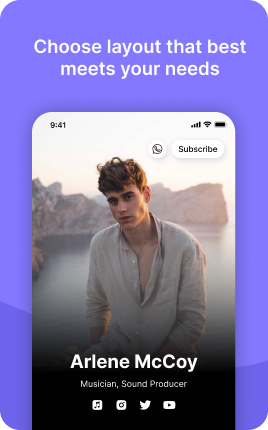
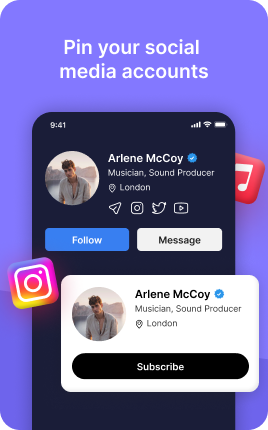
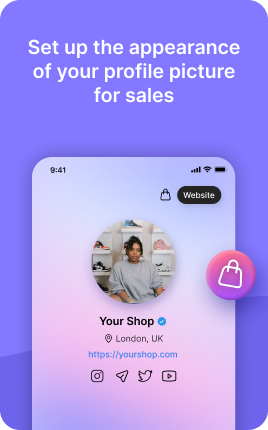
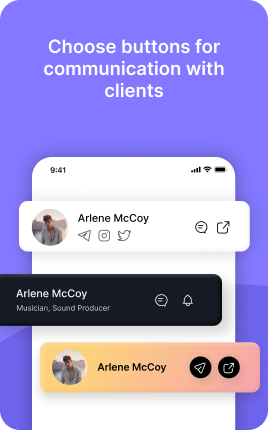
The Header Block is the identity layer of your link in bio — the section that tells visitors who you are in the first second they land. Photo (or logo), name, one-line bio, social icons. Done well, it earns the trust visitors need before they'll click anything below; done poorly, it makes the entire page feel generic. The Header Block is the only block whose primary job is recognition rather than action: visitors should leave it feeling "yes, this is who I expected" or "this looks legit", and only then start scanning for what to do next.
Use cases
Concrete patterns we see UniLink creators apply most. Pick the closest to your situation as a starting point.
Personal creator brand
A clear photo of your face (not a logo), your name, and a one-sentence bio — what you do, who you help. Add the social icons of platforms you actually want followers on (skip the dead ones). Visitors recognize you immediately and the rest of the page reads as "more from this person".
Local business storefront
Logo, business name, location and tagline. The Header Block establishes the business identity and the social icons act as proof of presence — an active Instagram says "this place is real and busy". For local businesses, the photo could be the storefront or a hero dish/product instead of a logo.
Multi-person team or studio
Studio logo with team handle, plus a tagline that captures the studio voice. For studios with multiple creators, the Header Block names the studio first, while the Team Block (linked from related blocks) lists individual members. This separation prevents the header from getting crowded.
Event or limited-time campaign
For a temporary campaign — a launch week, a tour, a workshop series — use a campaign-specific header with logo or hero image and dates ("Spring Workshop Tour 2026"). When the campaign ends, restore the regular header. Visitors during the window see immediately what's happening.
How to add this block
From marketplace install to live on your link in bio. Each step takes seconds; the writing is what takes time.
- 1
Add the block from the marketplace
Open your UniLink dashboard, drag the block to the position where it makes the strongest impact — typically near the top of the page so visitors see it immediately.
- 2
Upload or link your media
Upload directly from your device or paste a URL (YouTube, Vimeo, Instagram). For uploads, UniLink optimizes file size and format automatically — no manual encoding needed.
- 3
Configure layout and aspect ratio
Pick the aspect ratio that matches your media — 16:9 for landscape video, 9:16 for vertical, 1:1 for square. Mismatched aspect ratios crop or letterbox awkwardly.
- 4
Add caption or call-to-action
A short caption tells visitors what they're looking at and why it matters. Pair it with a CTA button if the media should drive clicks elsewhere.
- 5
Publish and check on mobile
Most link-in-bio traffic is mobile. After publishing, open the page on your phone — media that looks great on desktop sometimes loads slowly or crops poorly on mobile.
Best practices that move the needle
Small changes in writing or curation that consistently improve conversion.
Optimize for mobile first
Over 80% of link-in-bio traffic is mobile. Test on a real phone, not just browser dev-tools. Slow loads or weird cropping on mobile is the fastest way to lose visitors.
Compress before uploading
A 50MB video that looks identical at 5MB just costs your visitors more bandwidth. Compress with Handbrake, ffmpeg, or a free online tool before upload.
One strong piece beats five weak
Tempting to fill the block with everything you have. Resist — one excellent video or banner outperforms five mediocre ones. Curate ruthlessly.
Captions for accessibility and silent autoplay
Most mobile users browse with sound off. Add captions or subtitles so the message lands even without audio. This also improves SEO via transcripts.
Frequently asked questions
What is a Header Block in a link in bio?
A Header Block is the identity section at the top of your link in bio page. It contains your profile photo or logo, your name, an optional bio line, and social media icons. It is typically the first block on the page and the most visually prominent — visitors form their first impression of you primarily from the Header Block.
Photo or logo — which works better?
For personal brands and individual creators, a clear photo of your face beats a logo every time. Faces build trust and recognition that abstract marks cannot match. For businesses and studios, a clean logo works better than a stock-photo "person" — visitors recognize the brand and the logo carries the identity. When in doubt, use a real photo.
How long should the bio line be?
One sentence under 80 characters. The bio answers "who are you, who do you help, what do you do" — but compressed. "Photographer for indie musicians, Brooklyn" works. "Welcome to my page where I share creative content!" does not. Specific beats friendly. Cut adjectives until only nouns and verbs remain.
How many social icons should I include?
3-5 max — only the platforms you actually post on. Including dead accounts hurts more than helps because they signal "this person isn't active". A focused header with three icons of platforms you actually update beats a busy header with eight icons where five lead to inactive profiles.
Can I customize the Header Block layout?
Yes. UniLink offers multiple layout variants: photo on the left with text right, photo centered above text, large photo as background with text overlay. Most users keep the default centered layout for clarity, but design-forward brands often pick one of the alternatives to add visual personality.
Should the Header Block be a different color from the rest of the page?
Optional. A subtle color difference or background pattern can help the Header Block visually anchor the top of the page. Avoid high-contrast color blocks that fight with the page background — the goal is recognition, not visual noise. When in doubt, keep the header on the same background as the rest of the page.
Is the Header Block free on UniLink?
Yes. The Header Block is included on every UniLink plan and is added by default when you create a new page — most pages start with it pre-populated. You can customize the photo, name, bio, social links, and layout on any plan including the free tier.
Related blocks
Pair this block with these to build a complete page on your link in bio.
Ready to add this block?
Drop it on any UniLink page in under a minute. Customize copy, visuals, and order without touching code.
Add to UniLink — free