




HTML
Embed custom HTML code directly into page
7K +
Installs
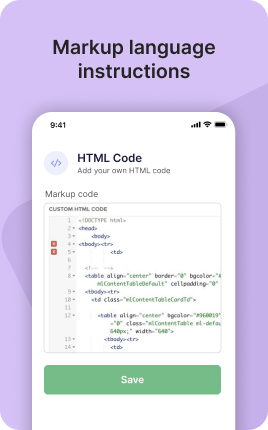
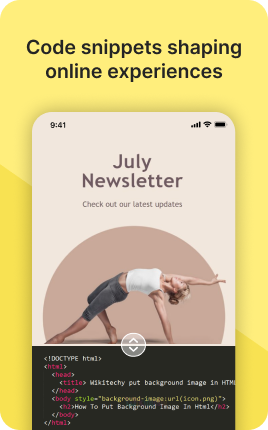

The HTML Code Block is the escape hatch — a place to embed arbitrary HTML when no purpose-built block exists for what you need. Use it for third-party widgets (Calendly, Typeform, Mailchimp signup forms), custom embeds (Tally, AirTable, Notion), or hand-coded HTML/CSS for very specific layouts. The block is powerful but should be a last resort: purpose-built blocks (Form, Booking, Music, Video, etc.) are easier to maintain, faster to load, and less likely to break than custom HTML.
Use cases
Concrete patterns we see UniLink creators apply most. Pick the closest to your situation as a starting point.
Third-party widgets and embeds
Calendly booking widget, Typeform survey, Mailchimp signup, Tally form, custom Notion embed. Paste the embed code from the third-party tool and the block renders it.
Custom CSS for unique layouts
For brands with very specific design requirements that don't fit any of the standard blocks. The HTML Code Block accepts CSS in <style> tags so you can craft any layout you need.
Tracking and analytics tags
Custom Google Analytics, Facebook Pixel, custom event tracking. Most common tags are supported via the dedicated Settings → Integrations area, but the HTML Code Block handles edge cases and custom tags.
Interactive demos and prototypes
Embed a simple interactive demo, calculator, quiz, or prototype directly on your bio. For more complex apps, host elsewhere and embed via iframe — the HTML Code Block supports iframes.
How to add this block
From marketplace install to live on your link in bio. Each step takes seconds; the writing is what takes time.
- 1
Add the block from the marketplace
Open your UniLink dashboard and drop the block where it solves a specific need on your page — typically as part of a larger composition rather than the centerpiece.
- 2
Configure the specific behavior
Utility blocks have settings unique to their purpose. Take a minute to read the inline help — small misconfigurations here cause big issues at scale.
- 3
Test in preview mode
Before publishing, click "Preview" to see exactly how the block behaves for visitors. Some utility blocks (like unlock or chat) only fire in published pages, so preview is your last chance to catch issues.
- 4
Combine with other blocks
Utility blocks rarely stand alone. They support the main content blocks around them. Make sure the surrounding context tells visitors why this utility matters.
- 5
Publish and verify on mobile
Hit publish, then test on a real mobile device. Utility blocks often involve interactivity that behaves differently on touch vs. mouse — verify on the device most visitors actually use.
Best practices that move the needle
Small changes in writing or curation that consistently improve conversion.
Don't over-engineer simple pages
Utility blocks add power but also add complexity. If your page is doing fine without one, adding it just to "improve" things often backfires. Add only when you have a specific problem to solve.
One utility purpose per block
Trying to make a single utility block do three things at once usually fails. Use multiple blocks each focused on a single purpose — clearer for you to maintain and clearer for visitors to use.
Document your configuration
Utility settings are easy to forget. Add a short note in your project doc or page description so future-you (or a teammate) knows why this block is configured this specific way.
Disable rather than delete
When a utility no longer fits, hide or disable it instead of deleting. Easier to bring back when needs change, and you preserve the configuration history.
Frequently asked questions
What is an HTML Code Block in a link in bio?
An HTML Code Block lets you embed custom HTML, CSS, and JavaScript on your link in bio page. It's the escape hatch for content that no purpose-built block supports — third-party widgets, custom embeds, hand-coded layouts, or unique tracking tags.
Is it safe to put arbitrary HTML on my page?
It can be, but you should know what you're embedding. UniLink runs the HTML in a sandboxed iframe by default to limit security risk. Avoid pasting code from untrusted sources without reading it; embedded JavaScript runs with the same trust as your bio page itself.
Can I include CSS and JavaScript?
Yes. The block accepts full HTML including <style> for CSS and <script> for JavaScript. Use sparingly — heavy custom JavaScript slows page load and can break on mobile. Test thoroughly before relying on it.
Should I use this for forms instead of the Form Block?
No, use the Form Block. The Form Block has built-in validation, styling, destination integrations, and conversion tracking — all of which you'd have to recreate from scratch with custom HTML. Use HTML Code Block only when no purpose-built block fits.
Is the HTML Code Block free on UniLink?
The HTML Code Block is a PRO-plan feature because of the security and complexity implications. Free creators can use the dozens of purpose-built blocks for almost every use case; PRO unlocks the escape hatch for edge cases.
Related blocks
Pair this block with these to build a complete page on your link in bio.
Ready to add this block?
Drop it on any UniLink page in under a minute. Customize copy, visuals, and order without touching code.
Add to UniLink — free