




Map
Embed an Google Map on your page
3.5K +
Installs
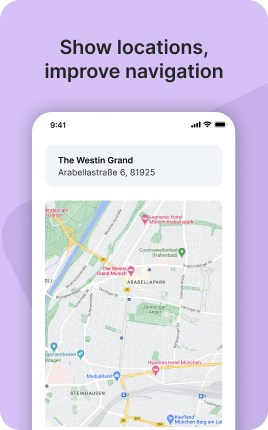
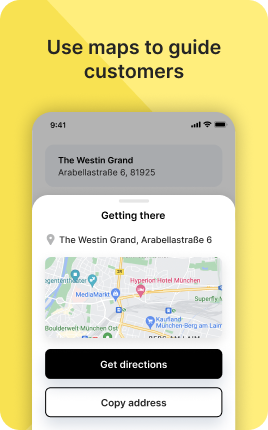
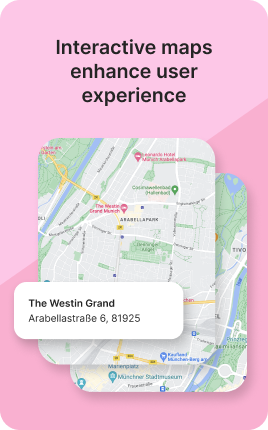
The Map Block embeds an interactive map of your business location directly on your link in bio. Visitors see exactly where you are, can tap to open Google Maps for directions, and recognize the area before they arrive. Essential for any business that lives in a physical place — restaurants, shops, salons, clinics, studios, venues. The Map Block reduces "where is this exactly?" inquiries by answering visually before visitors ask.
Use cases
Concrete patterns we see UniLink creators apply most. Pick the closest to your situation as a starting point.
Restaurant and venue locations
Embed the precise location with a clear pin. Visitors decide whether the place is convenient to visit before they tap "directions". Reduces no-shows by ensuring visitors aren't surprised by location.
Multi-location businesses
Salons, retail chains, fitness studios with multiple branches — show all locations on one map with separate pins. Visitors pick the location closest to them.
Event venue and meeting points
For one-off events — workshop locations, meetup spots, tour stops — the Map Block makes the venue location unmistakable. Pair with the Events & Tickets Block for full event context.
Service area for service businesses
Plumbers, electricians, mobile detailers — show the radius of areas you serve as a highlighted region on the map. Visitors immediately know if you cover their area.
How to add this block
From marketplace install to live on your link in bio. Each step takes seconds; the writing is what takes time.
- 1
Add the block from the marketplace
In your UniLink dashboard, drop the block where visitors need to choose where to go — often near the top, where the page splits into multiple journeys.
- 2
Add destinations or pages
List the items you want visitors to navigate to — pages, external URLs, or anchor sections. Each destination becomes a tap-target on mobile.
- 3
Order by importance
Items at the top get the most clicks. Put the destination you most want visitors to pick first; lower-priority options below. Don't make visitors choose between equals.
- 4
Set descriptive labels
Replace generic labels like "Click here" with specific destinations: "Book a discovery call", "Read latest blog post". Specific labels convert better and improve accessibility.
- 5
Publish and review click-through
After publishing, watch which destinations get clicks and which get ignored. Move winners up; remove items with zero clicks for a month — they only add friction.
Best practices that move the needle
Small changes in writing or curation that consistently improve conversion.
No more than seven options
Hick's Law: choice paralysis kicks in past seven options. If you need more, group them into themes or split across pages. Long lists hurt every metric.
Strongest option first
Whatever you most want visitors to do, put it on top. Equal-weight lists make visitors hesitate; clear priority makes them act.
Verbs over nouns in labels
Action labels — "Book a call", "Get the guide" — outperform noun labels — "Calls", "Guides". Verbs tell the visitor what happens when they tap.
Test removing items
Counterintuitively, removing low-performing items often raises clicks on the remaining ones. Audit monthly: anything with under 1% click share is a candidate to cut.
Frequently asked questions
What is a Map Block in a link in bio?
A Map Block embeds an interactive map (Google Maps or OpenStreetMap) on your link in bio page. The map shows your business location with a pin, and visitors can tap to open the location in their preferred maps app for directions.
Which map providers are supported?
Google Maps (most common, requires no setup) and OpenStreetMap (privacy-friendly, no Google tracking). Most users go with Google Maps because that's where most visitors prefer to view directions; OpenStreetMap is the right choice for privacy-focused brands.
Can I show multiple locations?
Yes. Add multiple pins to the same Map Block (for multi-location businesses) or use multiple Map Blocks for separate sections of the page (e.g., "Main location" and "Pop-up event").
Will the map work on mobile?
Yes. Maps render correctly on mobile and desktop. Tapping the map opens the visitor's default maps app (Google Maps or Apple Maps) with the location pre-loaded for directions — no manual address copying.
Is the Map Block free on UniLink?
Yes. The Map Block is included on every UniLink plan, including the free tier.
Related blocks
Pair this block with these to build a complete page on your link in bio.
Ready-to-use apps in the marketplace
Try ready-made page templates built around this block — install with a single click.
Map
Add Google Map to help users navigate to your local business
Text
General text block to write anything you want
Links
Drive traffic to your website, blog, online store, or any web link
Form
Custom form to capture any information from your audience
Ask Me Anything
Let your fans submit questions — answer publicly or privately
Survey
Gather feedback and opinions from your audience with a survey
Wall
Let visitors post photos, text, or video on your page
Ready to add this block?
Drop it on any UniLink page in under a minute. Customize copy, visuals, and order without touching code.
Add to UniLink — free