




Welcome Message
Greet visitors with a static message
2.5K +
Installs
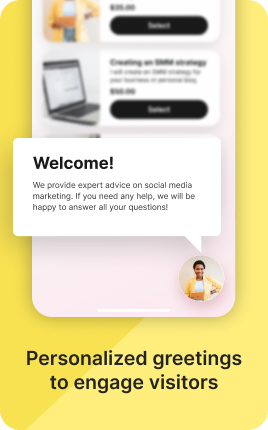


The Welcome Message Block greets first-time visitors with a personalized message — a friendly intro, brand context, or call-to-action specific to new visitors. Returning visitors skip the greeting and see the standard bio content. The block is the link-in-bio equivalent of the welcome banner on a website: useful for setting expectations and creating a warmer first impression than dropping visitors directly into the page content.
Use cases
Concrete patterns we see UniLink creators apply most. Pick the closest to your situation as a starting point.
New visitor introduction
"Welcome! I'm Maria, an indie illustrator. Start with my latest commission below or browse the shop." Friendly first-impression that orients newcomers without distracting returning visitors.
Campaign-specific greeting
During a launch or campaign, greet visitors with campaign context: "Welcome — you're here from the YouTube video. The course starts October 15." Tailored greeting drives higher conversion than generic homepage.
Behavioral greeting (returning vs new)
New visitors see "Welcome, here's what I do"; returning visitors see "Good to see you back — what's new since last time". Different messages for different relationship stages.
Brand voice and tone-setting
For brands where personality matters (creators, indie projects, distinct voices), the welcome message is where personality lives. Sets the tone for everything that follows.
How to add this block
From marketplace install to live on your link in bio. Each step takes seconds; the writing is what takes time.
- 1
Add the block from the marketplace
In your UniLink dashboard, place the block where you want to capture data — usually near the call-to-action or at the end of the page.
- 2
Choose the fields you actually need
Every field added drops conversion ~5-10%. Ask for name and email; collect everything else later via follow-up email. Long forms feel like work.
- 3
Connect a destination
Pipe submissions to email, Google Sheets, Mailchimp, or your CRM via webhook. Without a destination, submissions go nowhere — connect it before going live.
- 4
Write the button text that moves people
Replace the default "Submit" with something specific: "Get my free guide", "Send my quote", "Reserve my spot". Generic buttons convert worse across every form.
- 5
Publish and confirm
Submit a test entry yourself, confirm it lands at the destination, and watch real submissions in Analytics. If submissions stall, the form is too long or the value unclear.
Best practices that move the needle
Small changes in writing or curation that consistently improve conversion.
Three fields or fewer
Conversion drops sharply past three fields. Email + name + one optional field is the sweet spot for most use cases. Anything more belongs in a follow-up message.
Show the value before the form
Tell visitors exactly what they get for filling it out — "Get the 14-day onboarding plan PDF", not "Sign up for our newsletter". Specific value beats generic invitation.
Confirm immediately on submit
A clear "Thanks, check your email in 30 seconds" reassures the visitor. Silent submits feel broken and lead to duplicate submissions or bounces.
Mobile keyboards matter
Use the right input type — email keyboard for emails, number pad for phones, datepicker for dates. Wrong keyboards on mobile add friction and increase abandonment.
Frequently asked questions
What is a Welcome Message Block in a link in bio?
A Welcome Message Block displays a personalized greeting to visitors — typically shown to first-time visitors only, with returning visitors skipping it. Useful for setting expectations, providing context, or warming up new visitors before the main bio content.
Will returning visitors see it again?
Configurable. Default behavior is "show once per visitor" — UniLink stores a small flag in the visitor's browser so the same visitor doesn't see the welcome again. You can also set it to show every time, or to reset after a configurable period (30 days, 6 months) for re-introducing yourself to long-absent visitors.
How is it different from the Banner Block?
Banner Block is for everyone — content visible to all visitors regardless of visit history. Welcome Message Block is targeted at first-time visitors specifically, hidden from returners. Use Banner for permanent content; use Welcome for first-impression context.
Should the welcome message be dismissible?
Yes is the default — visitors can tap to dismiss and proceed to the main bio. Forcing visitors through a welcome they didn't ask to read is counterproductive. The dismiss is part of respecting visitor attention.
Is the Welcome Message Block free on UniLink?
Yes for basic functionality. PRO plans add advanced features like behavioral targeting (different welcomes based on traffic source, previous purchases, etc.) and A/B testing of welcome variants.
Related blocks
Pair this block with these to build a complete page on your link in bio.
Ready to add this block?
Drop it on any UniLink page in under a minute. Customize copy, visuals, and order without touching code.
Add to UniLink — free