



- GitHub lets you add 1 website URL in your profile settings, plus unlimited links via profile README (a Markdown file in a special repo named after your username).
- The profile README accepts full Markdown + HTML — clickable links, badges, images, GitHub Actions widgets all work.
- For multiple destinations behind one short URL, use a link-in-bio service like UniLink.
How to Add a Website Link in GitHub Profile Settings
- Click your profile photo (top right).
- Click Settings.
- Click Profile in the left sidebar.
- Scroll to Website field.
- Paste your URL (e.g.,
https://unil.ink/yourname). - Click Save.
Your link appears below your bio on your profile page, clickable for visitors.
How to Add Multiple Links via Profile README
GitHub's profile README is a hidden gem. Create a special repo named after your username (e.g., github.com/yourname/yourname) and add a README:
- Go to github.com/new (create new repository).
- Repository name: same as your username (e.g., if you're
octocat, name itoctocat). - Make it public.
- Check Add a README file.
- Click Create repository.
- Edit the README.md file.
This README appears on top of your GitHub profile.
What to Put in Your GitHub Profile README
Sample structure:
# Hi, I'm [Name] 👋
Software engineer building [what you build].
## What I'm working on
- 🌱 Currently learning [tech]
- 🔭 Working on [project]
- 💞️ Looking to collaborate on [niche]
## Connect with me
- [Website](https://unil.ink/yourname)
- [Twitter](https://twitter.com/yourname)
- [LinkedIn](https://linkedin.com/in/yourname)
- [Newsletter](https://yourname.substack.com)
- Email: [email protected]
## Tech stack
, , 
Best Profile README Sections
| Section | Purpose |
|---|---|
| Header / intro | Who you are + title |
| What I'm working on | Current focus |
| Tech stack badges | Visual skills summary (use shields.io) |
| Featured projects | Top 3-6 repos with descriptions |
| GitHub stats card | Auto-generated stats widget |
| Connect / Links | Website, social, email |
| Recent blog posts | Auto-pulled from RSS via GitHub Action |
| Recent projects | Latest commits or releases |
How to Add Tech Stack Badges
Use shields.io to generate badges:


For pre-made stack badges, use devicons or simpleicons.org.
How to Add GitHub Stats Card
Use github-readme-stats (open-source by anuraghazra):
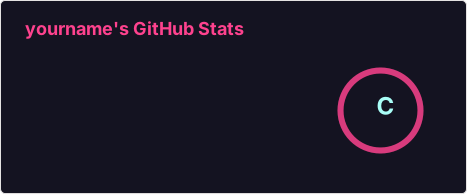Pulls your contributions, languages, stars, and renders a beautiful stats card.
Pin Your Top Repositories
- From your profile, click Customize your pins.
- Select up to 6 repos to pin at top of your profile.
- These display prominently with descriptions.
Pinned repos function as a portfolio for visitors.
Why GitHub Profile Matters for Developers
- Recruiter visibility — recruiters check GitHub before LinkedIn.
- Tech credibility — code speaks louder than résumés.
- Open-source signaling — contributions show you can collaborate.
- Personal branding — first stop for tech bloggers, podcast guests.
- Indirect SEO — GitHub profiles rank on Google for your name.
Frequently Asked Questions
Can I add multiple links to my GitHub profile?
1 dedicated Website field + unlimited via the profile README (Markdown supports as many links as you need).
How do I create a GitHub profile README?
Create a public repo with the exact same name as your username. Add a README.md file. It will display on your profile.
Does GitHub support HTML in profile?
Yes — GitHub Markdown supports a subset of HTML. Use it for formatting beyond Markdown (centered images, columns, custom layouts).
Can I add a custom domain to GitHub?
Yes — via GitHub Pages. Create a repo named yourname.github.io and configure custom domain. Your blog/website then runs on github.com.
What's the best link to add to GitHub?
Your portfolio website or blog. Many devs use a link-in-bio for additional destinations (Twitter, newsletter, courses, talks).
Key Takeaways
- Settings → Profile → Website (1 URL).
- Profile README (special repo with your username) for unlimited links.
- Pin your top 6 repositories as a portfolio.
- Use shields.io badges + github-readme-stats for visual flair.
- GitHub profile = developer's first impression. Make it count.
Drive GitHub visitors to all your platforms
Add a UniLink URL to your GitHub Website + README — covers your blog, courses, talks, social. Free with click analytics.