




Coupons
Special offers, discounts, and promo codes
6.4K +
Installs
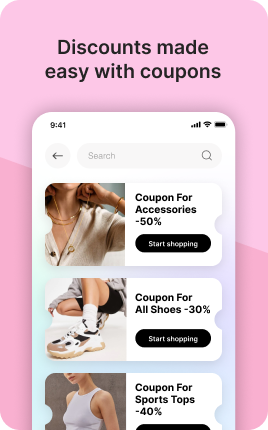
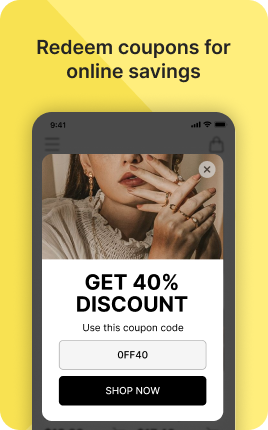
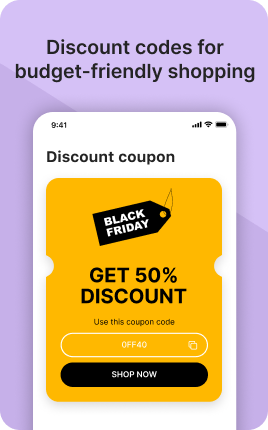
The Coupons Block surfaces promo codes directly on your link in bio so visitors can grab a deal without hunting through emails or DMs. Each coupon is one-tap copyable, optionally one-tap apply at your checkout, and includes a clear expiry date and any usage limits ("first 100 only"). Use the Coupons Block to drive a specific campaign — Black Friday, anniversary, partner discount, holiday sale — without rebuilding the rest of your bio. Best practice: pair it with a Banner Block above announcing the campaign and a CTA Block below pointing to the discounted product.
Use cases
Concrete patterns we see UniLink creators apply most. Pick the closest to your situation as a starting point.
Seasonal sales and Black Friday
Drop a one-line code (BLACKFRIDAY20) for a percentage-off sitewide deal during your big sale week. Visitors copy the code with one tap and apply at checkout. The clear expiry date ("ends Sunday at midnight") creates urgency without you needing to write copy.
Influencer and partner codes
When you partner with creators or affiliates, give each a unique code (CREATORNAME15) that they share to their audience. The Coupons Block tracks redemptions per code so you measure who actually drives sales — far better than vanity-metric analytics on social posts.
New customer welcome offer
Permanent code (WELCOME10) for first-time buyers — visible on your bio so first-time visitors immediately see "10% off your first order". This frames your store as friendly to new buyers and lifts first-purchase conversion meaningfully.
Tiered loyalty rewards
Different codes for different audience tiers — newsletter subscribers get NEWSLETTER15, Patreon supporters get PATRONS25, podcast listeners get PODCAST10. The Coupons Block can show all codes in one block or rotate which is visible based on the page they land on.
How to add this block
From marketplace install to live on your link in bio. Each step takes seconds; the writing is what takes time.
- 1
Add the block from the marketplace
Open your UniLink dashboard, pick the page you want to sell on, and add the block from the marketplace. It appears empty so you can populate it with your own products or offers.
- 2
Connect your payment provider
UniLink supports Stripe, PayPal, WayForPay, and Fondy. Connect at least one in Settings → Payments so the block can collect money. Without this step the block is preview-only.
- 3
Add product details that sell
For each item, write a short outcome-led title, a benefit-led description, set the price, and upload at least one photo. Photos drive ~60% of conversion on link-in-bio commerce — invest in them.
- 4
Set inventory and shipping rules
If you ship physical goods, define shipping zones and rates. For digital and service products, mark them as "no shipping required" so the checkout skips the address step.
- 5
Publish and watch the dashboard
Hit publish and the block goes live. UniLink Analytics shows views, add-to-cart events, and revenue per product so you can iterate on what converts and what does not.
Best practices that move the needle
Small changes in writing or curation that consistently improve conversion.
One hero offer per block
Visitors decide in seconds. Lead with your strongest offer — bestseller, new launch, or biggest discount — and let the rest support it. A wall of equal items competes with itself.
Real photos beat stock every time
Phone-shot product photos out-convert generic stock images by 2-3x on link-in-bio. Visitors trust what looks real. Avoid stock unless you sell stock photography.
Price clearly, no hidden costs
List the all-in price including taxes where the law allows. Surprise costs at checkout are the #1 reason visitors abandon link-in-bio carts.
Test offers monthly
Rotate which offer leads the block every month. Track which version drives the highest revenue per visitor in Analytics. Stale offers go stale fast on social.
Frequently asked questions
What is a Coupons Block in a link in bio?
A Coupons Block displays promo codes on your link in bio page in a tap-to-copy format. Each coupon includes the code itself, a description of the discount, an optional expiry date, and an optional usage limit. Visitors copy the code with one tap and apply it at checkout in your Shop Block, Single Product Block, or Digital Products Block.
Do coupons auto-apply at checkout?
Yes if the buyer is checking out within UniLink (Shop Block, Single Product Block, etc.). Tapping a coupon copies the code to clipboard AND, when they reach checkout in the same session, the code auto-fills the discount field. For external store links, the code is copied but applied manually by the buyer.
Can I limit how many times a coupon is used?
Yes. Set a total usage cap ("first 100 customers"), per-customer limit ("one use per email"), or both. Once limits are hit, the coupon either shows "Sold out" / "Expired" or disappears from the block, depending on configuration.
Can coupons have expiry dates?
Yes. Set start and end dates — the coupon only displays during that window. After expiry, the block shows nothing (or you can configure a "missed it" state inviting visitors to subscribe for the next sale). Pair date-limited coupons with a Banner announcing the deadline for max urgency.
How do I track which coupons get used?
The Analytics dashboard shows redemptions per coupon, total discount value applied, and which sources drove the highest redemption rates. Use this data to retire under-performing codes, double down on what works, and measure partner/affiliate ROI.
Can I create percent-off and dollar-off coupons?
Yes. Each coupon supports percent-off (e.g., 20% off cart total), fixed amount off (e.g., $10 off), free shipping, or buy-one-get-one. You can also restrict coupons to specific products or product categories — useful when you want to discount a launch but not your full catalog.
Is the Coupons Block free on UniLink?
Basic coupon functionality is included on free plans, with limits on the number of active codes simultaneously. PRO plans unlock unlimited active codes, advanced restrictions, and detailed redemption analytics. Most early-stage merchants are fine on the free tier until they run multiple concurrent campaigns.
Related blocks
Pair this block with these to build a complete page on your link in bio.
Ready to add this block?
Drop it on any UniLink page in under a minute. Customize copy, visuals, and order without touching code.
Add to UniLink — free