




Shop
Sell physical products using a full-feature shopping cart
7.9K +
Installs
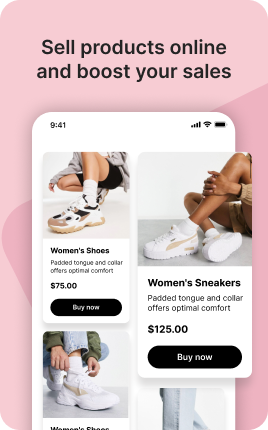
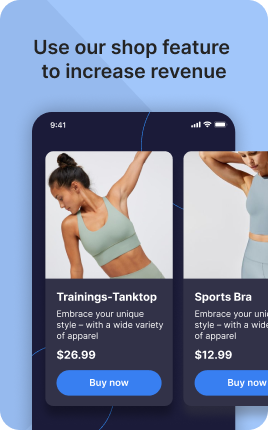
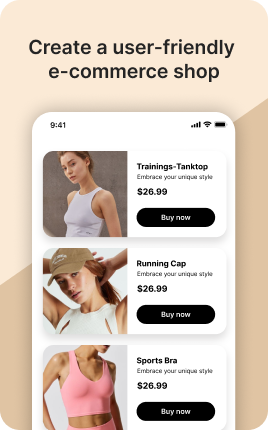
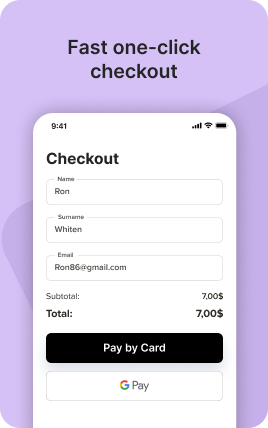
The Shop Block turns a link in bio from a static profile into a checkout-ready storefront. Visitors browse a grid of products, tap to see details, add to cart, and pay — all without leaving the page. Built-in support for Stripe, PayPal, WayForPay, and Fondy means you collect money the moment a visitor decides to buy, with no redirect to an external store and no friction that drops conversion. The Shop Block works equally well for physical goods that ship, digital downloads delivered instantly, services that need scheduling after purchase, and limited-edition drops that sell out in minutes.
Use cases
Concrete patterns we see UniLink creators apply most. Pick the closest to your situation as a starting point.
Creator merch and digital products
Sell printed t-shirts, signed prints, course PDFs, presets, or LUTs directly from your link in bio. Visitors who already follow you are the highest-converting audience for your own products — give them a one-tap path from bio to checkout.
Restaurants and food businesses
Offer takeaway boxes, gift vouchers, delivery slots, or signature sauces for direct sale. The Shop Block lets diners commit on the same page where they discovered you — no separate ordering app, no third-party fees.
Coaches selling templates and packages
Productize your expertise — PDF playbooks, Notion templates, prerecorded workshops, multi-session coaching packages. The Shop Block handles single payments and bundles in one block, with delivery via email link or upload.
Limited drops and pre-orders
Run scarcity-driven launches: 100 numbered pieces, pre-orders that close on a date, member-only bundles. UniLink tracks inventory live and removes sold-out items automatically, so visitors never end up disappointed at checkout.
How to add this block
From marketplace install to live on your link in bio. Each step takes seconds; the writing is what takes time.
- 1
Add the block from the marketplace
Open your UniLink dashboard, pick the page you want to sell on, and add the block from the marketplace. It appears empty so you can populate it with your own products or offers.
- 2
Connect your payment provider
UniLink supports Stripe, PayPal, WayForPay, and Fondy. Connect at least one in Settings → Payments so the block can collect money. Without this step the block is preview-only.
- 3
Add product details that sell
For each item, write a short outcome-led title, a benefit-led description, set the price, and upload at least one photo. Photos drive ~60% of conversion on link-in-bio commerce — invest in them.
- 4
Set inventory and shipping rules
If you ship physical goods, define shipping zones and rates. For digital and service products, mark them as "no shipping required" so the checkout skips the address step.
- 5
Publish and watch the dashboard
Hit publish and the block goes live. UniLink Analytics shows views, add-to-cart events, and revenue per product so you can iterate on what converts and what does not.
Best practices that move the needle
Small changes in writing or curation that consistently improve conversion.
One hero offer per block
Visitors decide in seconds. Lead with your strongest offer — bestseller, new launch, or biggest discount — and let the rest support it. A wall of equal items competes with itself.
Real photos beat stock every time
Phone-shot product photos out-convert generic stock images by 2-3x on link-in-bio. Visitors trust what looks real. Avoid stock unless you sell stock photography.
Price clearly, no hidden costs
List the all-in price including taxes where the law allows. Surprise costs at checkout are the #1 reason visitors abandon link-in-bio carts.
Test offers monthly
Rotate which offer leads the block every month. Track which version drives the highest revenue per visitor in Analytics. Stale offers go stale fast on social.
Frequently asked questions
What is a Shop Block in a link in bio?
A Shop Block is a built-in storefront that lives on your link in bio page. Visitors browse a grid of products, tap to view details, add items to a cart, and check out without leaving the page. It supports physical and digital goods, services, single items and bundles, with payment processing built in via Stripe, PayPal, WayForPay, or Fondy.
Which payment providers does the Shop Block support?
Stripe (cards globally), PayPal (cards plus PayPal balance), WayForPay (popular in Ukraine and surrounding markets), and Fondy. Connect at least one in Settings → Payments before publishing the block. You can connect multiple — visitors then choose at checkout.
Can I sell digital downloads through the Shop Block?
Yes. Mark a product as digital, upload the file (PDF, ZIP, video, audio) or paste an external URL, and UniLink emails the buyer a secure download link the moment payment clears. No manual fulfillment needed.
How do I handle shipping for physical products?
In Settings → Shipping, define zones (countries or regions) and rates per zone (flat fee, weight-based, or free over a threshold). The Shop Block calculates shipping at checkout based on the buyer's address. Digital products skip the address collection step entirely.
Are there transaction fees beyond the payment provider?
UniLink charges no platform fee on free plans for basic shop functionality up to a monthly transaction volume. Heavy merchants may want to upgrade to PRO for higher limits and advanced features like coupons and abandoned-cart recovery. Payment provider fees (Stripe, PayPal etc.) apply separately and are set by them.
Can I use the Shop Block for pre-orders?
Yes. Mark a product as a pre-order with a release date and buyers see clear "ships on X" messaging at checkout. UniLink can also collect deposit-style partial payments now and the remainder when the product ships, depending on your payment provider's capabilities.
How does inventory tracking work?
Set a stock count per product. UniLink decrements automatically as orders come in and hides the product (or shows "Sold out") once inventory hits zero. For unlimited-quantity items like digital downloads, leave inventory off and they remain available indefinitely.
Related blocks
Pair this block with these to build a complete page on your link in bio.
Ready-to-use apps in the marketplace
Try ready-made page templates built around this block — install with a single click.
Shop
Sell physical or digital products from your own storefront
Affiliate Links
Share affiliate links — track clicks and earn commissions
Product Recommender
Turn browsing into one clear recommendation
Free Shipping Wheel
Give away shipping instead of margin
Order Form
Accept custom orders — let customers describe what they need
Single Product
Dedicated landing page for one product with image, description and buy button
Sell Digital Products
Sell any digital download — eBooks, templates, printables, and more
Ready to add this block?
Drop it on any UniLink page in under a minute. Customize copy, visuals, and order without touching code.
Add to UniLink — free