




Appointments
Schedule meetings in real time
5K +
Installs
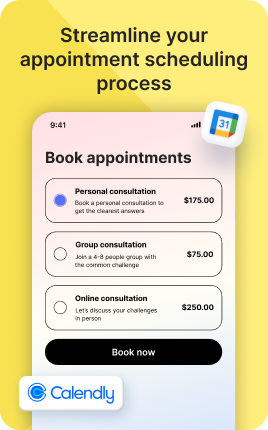
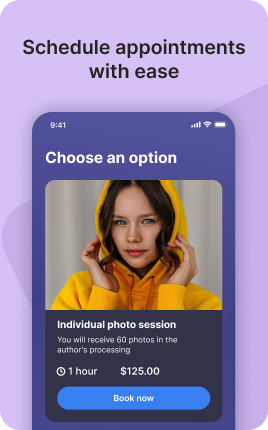

The Appointments Block is purpose-built for short, recurring time slots — 30 or 60 minute calls, consultations, coaching sessions, demos, fittings. Visitors pick a slot from your live availability, fill in their details, optionally pay, and the meeting lands in your calendar with a confirmation email out the door. Connect Google Calendar, Outlook, or iCal so existing events block availability automatically and you never end up with a double-book. The Appointments Block is the workhorse for service businesses where time itself is the product, and it converts noticeably better than asking visitors to email you to "find a time".
Use cases
Concrete patterns we see UniLink creators apply most. Pick the closest to your situation as a starting point.
Coaching and consulting calls
Coaches, therapists, business consultants — let prospects book a 30 or 60 minute discovery or paid session directly. Pre-payment options ensure you only block time for clients who follow through. The intake question step lets you collect context before the call so the session itself is more valuable.
Sales demos and product walkthroughs
SaaS sales teams, agencies, anyone selling a complex product — book a 20-30 minute demo with a clear "what we'll cover" description. Visitors who self-qualify with a calendar booking convert at much higher rates than those who fill out generic contact forms.
Service appointments — medical, beauty, fitness
Therapists, hairstylists, personal trainers, physiotherapists — accept appointment bookings with intake forms (medical questions, hair history, fitness goals). The Appointments Block handles deposits, late-cancel policies, and recurring appointments so you operate the calendar like a real practice.
Office hours and free consultations
Authors, professors, freelancers offering paid services — open 4-6 free office hours per week so visitors can ask quick questions. Most won't book paid services right away, but the office hour itself is high-trust marketing that fills your paid calendar later.
How to add this block
From marketplace install to live on your link in bio. Each step takes seconds; the writing is what takes time.
- 1
Add the block to your page
Open the UniLink dashboard, choose the page that should accept bookings, and drag the block in from the marketplace. The default state is preview — no bookings until you finish setup.
- 2
Connect your calendar
Sync Google Calendar, Outlook, or iCal so existing events become unavailable slots. This prevents double-bookings without you manually blocking time after every personal meeting.
- 3
Define availability and slot length
Set the days and hours you accept bookings, the length of each slot, and any buffer between slots. Buffers prevent back-to-back exhaustion and give you a transition window.
- 4
Add intake questions or payment
Optionally collect a short form or upfront payment when someone books. For paid bookings, connect Stripe/PayPal in Settings → Payments first.
- 5
Publish and share the link
Publish the page, share the link in your bio or campaign, and watch confirmed bookings flow into your calendar. UniLink Analytics shows booking-to-show-up rate so you can spot drop-off.
Best practices that move the needle
Small changes in writing or curation that consistently improve conversion.
Show price upfront, not at checkout
If your service costs money, name the price near the booking button. Hidden pricing kills conversion — visitors who reach checkout and see an unexpected number tend to bounce.
Limit slot choices to reduce paralysis
Offering "any time you want" overwhelms visitors. Pre-filter to 6-12 sensible slots over the next two weeks. Bookings rise when the choice feels manageable.
Confirm by email AND SMS
No-shows drop sharply when you confirm by both channels. UniLink can trigger both automatically when a booking is made and 24h before the appointment.
Cancel policy in plain language
State your cancel window upfront ("free cancel 24h before, otherwise 50% charge"). Visitors who know the rule before booking are far less likely to no-show.
Frequently asked questions
What is an Appointments Block in a link in bio?
An Appointments Block is a scheduling widget on your link in bio page. Visitors see your live availability for short time slots (typically 15-90 minutes), pick one that works, fill in basic details, optionally pay, and the appointment lands in your calendar. The block sends confirmation emails automatically and supports calendar sync to prevent double-bookings.
How is it different from the Booking Block?
The Appointments Block is built for short recurring time slots — typically 30-60 minutes — like coaching calls, demos, or service appointments. The Booking Block is built for longer stays or rentals (hours, days, weeks) with check-in/check-out dates. Use Appointments for "book a 30-min call"; use Booking for "rent the studio for the afternoon".
Can I charge for appointments?
Yes. In block settings, set a price per slot type (free, fixed price, or sliding scale). Connect Stripe, PayPal, WayForPay, or Fondy in Settings → Payments to collect payment at booking. Paid bookings dramatically reduce no-shows compared to free bookings — even a small deposit ($10-20) filters out non-serious bookings.
What happens with my existing calendar events?
Connect Google Calendar, Outlook, or iCal in block settings. Any existing event on those calendars (personal, work, blocked time) becomes unavailable for booking automatically. You don't need to manually mark time off — your real calendar IS the source of truth.
Can I limit how far in advance people book?
Yes. Set a minimum booking notice (e.g., "at least 24 hours") and a maximum advance booking window ("up to 30 days out"). These prevent last-minute requests when you can't prepare and stop visitors from booking 6 months out when your offering might change.
How do I handle cancellations and reschedules?
Each confirmation email includes a "reschedule" and "cancel" link valid until your cancellation cutoff (configurable, e.g., "no cancellations within 24 hours"). The slot reopens for new bookings as soon as someone cancels. Set a cancel policy upfront so visitors know the rules before they book.
Do clients receive reminders before the appointment?
Yes. UniLink sends an email reminder 24 hours before each appointment by default. PRO plans add SMS reminders for further drop in no-show rate. Combined email + SMS reminders cut no-shows by an estimated 50% compared to no reminders at all.
Related blocks
Pair this block with these to build a complete page on your link in bio.
Ready to add this block?
Drop it on any UniLink page in under a minute. Customize copy, visuals, and order without touching code.
Add to UniLink — free