




Events or Tickets
Create an event page and start selling tickets directly
7K +
Installs
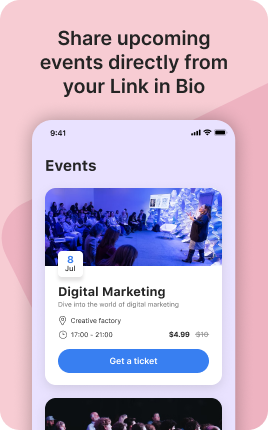
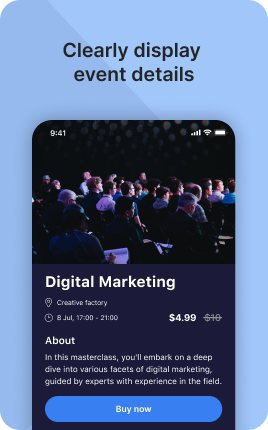
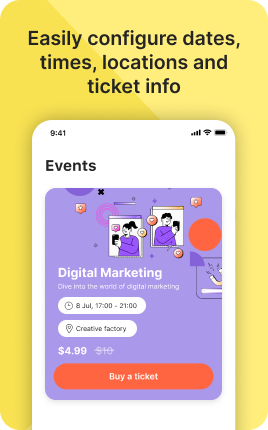
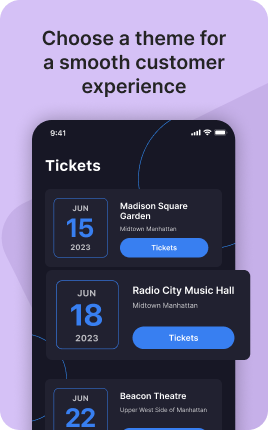
The Events & Tickets Block is a self-contained ticket-selling platform inside your link in bio. Visitors see event details — date, time, location, price tiers — pick how many tickets, pay, and receive QR-coded tickets via email. Capacity limits prevent oversell; tiered pricing supports early-bird, regular, and VIP. Common use cases: workshops, concerts, conferences, club nights, retreats, art-show openings. The block replaces what would otherwise require Eventbrite or a similar platform — you keep the data, the relationship, and the entire ticket revenue minus payment-processor fees.
Use cases
Concrete patterns we see UniLink creators apply most. Pick the closest to your situation as a starting point.
Workshops and masterclasses
In-person or online workshops with limited seats. The Events & Tickets Block handles tiered pricing (early-bird, regular, scholarship), capacity limits per tier, and automatic email confirmations with QR-coded tickets attendees show at the door (or join codes for online events).
Concerts, club nights, parties
Live music venues, clubs, party promoters — sell standard, VIP, and table tickets in one block. Door staff scan QR codes from attendees' phones at entry. Capacity tracking prevents oversell, and tiered pricing maximizes revenue without alienating budget-conscious fans.
Conferences and meetups
Multi-day conferences with optional add-ons (workshop tickets, networking dinner). The Events & Tickets Block handles complex pricing structures — speaker passes, student discounts, group rates — and outputs a clean attendee list for badges and check-in.
Retreats and immersive experiences
Multi-day retreats, intensive programs, group travel — these typically require a deposit at booking and balance closer to the date. The block handles deposit-then-balance flows and integrates with the Booking Block for accommodation logistics if your retreat needs both.
How to add this block
From marketplace install to live on your link in bio. Each step takes seconds; the writing is what takes time.
- 1
Add the block to your page
Open the UniLink dashboard, choose the page that should accept bookings, and drag the block in from the marketplace. The default state is preview — no bookings until you finish setup.
- 2
Connect your calendar
Sync Google Calendar, Outlook, or iCal so existing events become unavailable slots. This prevents double-bookings without you manually blocking time after every personal meeting.
- 3
Define availability and slot length
Set the days and hours you accept bookings, the length of each slot, and any buffer between slots. Buffers prevent back-to-back exhaustion and give you a transition window.
- 4
Add intake questions or payment
Optionally collect a short form or upfront payment when someone books. For paid bookings, connect Stripe/PayPal in Settings → Payments first.
- 5
Publish and share the link
Publish the page, share the link in your bio or campaign, and watch confirmed bookings flow into your calendar. UniLink Analytics shows booking-to-show-up rate so you can spot drop-off.
Best practices that move the needle
Small changes in writing or curation that consistently improve conversion.
Show price upfront, not at checkout
If your service costs money, name the price near the booking button. Hidden pricing kills conversion — visitors who reach checkout and see an unexpected number tend to bounce.
Limit slot choices to reduce paralysis
Offering "any time you want" overwhelms visitors. Pre-filter to 6-12 sensible slots over the next two weeks. Bookings rise when the choice feels manageable.
Confirm by email AND SMS
No-shows drop sharply when you confirm by both channels. UniLink can trigger both automatically when a booking is made and 24h before the appointment.
Cancel policy in plain language
State your cancel window upfront ("free cancel 24h before, otherwise 50% charge"). Visitors who know the rule before booking are far less likely to no-show.
Frequently asked questions
What is an Events & Tickets Block in a link in bio?
An Events & Tickets Block is a ticket-selling system embedded in your link in bio. Visitors see event details (date, time, venue, price tiers), pick how many tickets, pay, and receive QR-coded tickets via email automatically. Capacity tracking prevents oversell; tiered pricing supports early-bird, regular, VIP, and any other tier structure your event needs.
How is it different from Booking and Appointments?
Booking and Appointments are for one-on-one or small-group reservations where each booking is a unique time slot. The Events & Tickets Block is for one-to-many events where many people attend the same event at the same time. Use Tickets for "100 seats at the workshop"; use Booking for "rent the venue for a private event"; use Appointments for "book a 30-min consultation".
Can I have multiple ticket tiers?
Yes. Common patterns: Early-Bird ($50), Regular ($75), VIP ($150). Each tier has its own price, capacity, and benefits description. Visitors pick a tier and quantity; the block calculates the total. Add tiers for student rates, group discounts, scholarship spots, or premium add-ons.
How are tickets delivered?
Each successful purchase triggers an immediate email with attached PDF tickets containing QR codes unique to that order. Door staff scan the QR with any standard QR scanner app or the UniLink mobile app for live capacity tracking. For online events, the email contains a join link instead of a QR code.
Can I limit total event capacity?
Yes. Set total capacity (e.g., 100 seats) and capacity per tier. Once a tier sells out, it shows "Sold out" and visitors can only buy from remaining tiers. When total event capacity hits zero, the block shows "Sold out" overall and stops accepting orders.
How do I handle refunds and cancellations?
In block settings, define a refund policy ("full refund up to 7 days before, no refund after"). Buyers see this clearly before purchase. For approved refunds, issue them through your payment processor dashboard. For cancellations, the block can mass-email all ticket-holders the cancellation notice and trigger refunds in batch.
Is the Events & Tickets Block free on UniLink?
Basic ticket-selling functionality is included on free plans for events up to a certain monthly volume. PRO plans add advanced features like multi-tier pricing, group discounts, mass emails to ticket-holders, and advanced reporting. For most one-off event creators, the free tier handles the first few events comfortably.
Related blocks
Pair this block with these to build a complete page on your link in bio.
Ready to add this block?
Drop it on any UniLink page in under a minute. Customize copy, visuals, and order without touching code.
Add to UniLink — free