




Contacts
Display contact information (phone numbers, email addresses, messengers)
7.9K +
Installs
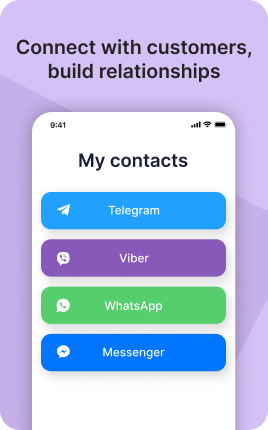
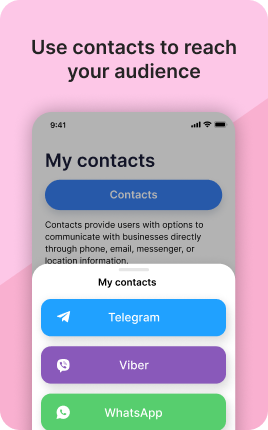
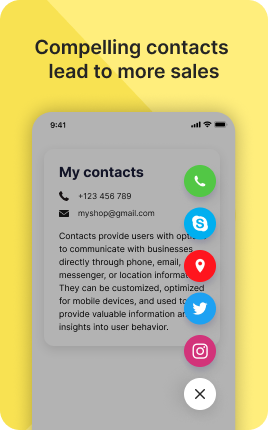
The Contacts Block displays clickable contact methods on your link in bio — phone numbers (tap-to-call), email addresses (tap-to-compose), physical addresses (tap-to-open in Maps), and messenger handles (WhatsApp, Telegram, Viber, Signal). Each contact is one-tap actionable, so visitors don't copy-paste anything to reach you. The block is essential for service businesses (restaurants, salons, clinics, agencies) where the conversion is "get in touch" rather than "buy now".
Use cases
Concrete patterns we see UniLink creators apply most. Pick the closest to your situation as a starting point.
Restaurant and venue contact
Phone for reservations, address for directions, email for events. The Contacts Block makes each one-tap accessible — no copying numbers between apps.
Service business inquiry
Coaches, consultants, agencies — phone, email, and Calendly link for booking. Visitors who reach the Contacts Block are typically high-intent; make every contact path one tap to reduce drop-off.
Multi-channel customer support
Brands offering support through multiple channels — email for non-urgent, WhatsApp for quick questions, phone for emergencies. The Contacts Block consolidates all channels with clear "use this for X" labels.
Cross-border messenger handles
For audiences that span regions, different messengers dominate (WhatsApp in EU/LatAm, Telegram in Eastern Europe, Viber in Eastern Europe, LINE in Asia). The Contacts Block lets visitors pick their preferred messenger without you guessing.
How to add this block
From marketplace install to live on your link in bio. Each step takes seconds; the writing is what takes time.
- 1
Add the block from the marketplace
In your UniLink dashboard, drop the block onto the page where your audience expects to find your content. Most creators put it directly under the hero.
- 2
Connect or paste your account link
Authenticate the social account if the block supports auto-feed, otherwise paste your profile URL. Auto-feed pulls the latest posts on a schedule — no manual updates.
- 3
Choose layout and post count
Grid, slider, or list — pick the layout that works with your other blocks visually. Show 6-9 most recent posts; more clutters, fewer looks empty.
- 4
Set the call-to-action
Add a clear button below the feed: "Follow on Instagram", "Subscribe on YouTube". Visitors who like what they see should know where to go next without scrolling.
- 5
Publish and watch traffic flow
The block now bridges your link in bio with your platform. Track click-through to your social profile in Analytics and adjust position if it underperforms.
Best practices that move the needle
Small changes in writing or curation that consistently improve conversion.
Show your best, not your latest
Auto-feed shows the latest, but if your latest post is weak, it hurts the bio page. Pin or curate your best 6-9 posts — these set the impression for new visitors.
Match the platform's visual language
Instagram-style square crops, TikTok's vertical aspect, YouTube's thumbnail format — visitors recognize and trust content that looks native. Don't fight the platform's norms.
One platform per block
Mixing Instagram, TikTok, and YouTube in one feed dilutes attention. Use a separate block per platform so visitors see a strong stream of one type instead of a confused mix.
Refresh the call-to-action quarterly
Static "Follow me" gets ignored over time. Rotate to specific CTAs ("New post tomorrow at 3pm", "Live in 2 hours") that signal activity and create urgency.
Frequently asked questions
What is a Contacts Block in a link in bio?
A Contacts Block displays your contact methods (phone, email, address, messenger handles) on your link in bio page in a tap-to-action format. Each contact is one-tap actionable: phone opens the dialer, email opens the mail app with your address pre-filled, address opens Maps with directions, messenger handles open the appropriate app.
How is it different from the vCard Block?
The vCard Block saves all your contact info to the visitor's phone contacts in one tap — useful for ongoing relationships. The Contacts Block is for immediate actions: call now, email now, message now. Use vCard for "save me for later"; use Contacts for "reach me right now".
Does tap-to-call work on desktop?
On desktop, phone numbers open the default phone-dialing app (FaceTime on Mac, Microsoft Phone Link on Windows) or copy to clipboard. The friction is slightly higher than mobile, but the convention works. Most contacts blocks see ~80%+ of taps from mobile devices anyway.
Which messengers are supported?
WhatsApp, Telegram, Viber, Signal, Facebook Messenger, LINE, WeChat, KakaoTalk. Each supported messenger generates the right deep-link format so the messenger app opens with your handle pre-loaded.
Is the Contacts Block free on UniLink?
Yes. The Contacts Block is included on every UniLink plan, including the free tier. There are no limits on the number of contact methods.
Related blocks
Pair this block with these to build a complete page on your link in bio.
Ready to add this block?
Drop it on any UniLink page in under a minute. Customize copy, visuals, and order without touching code.
Add to UniLink — free