




Outfits
Bundle outfits with direct link
4.2K +
Installs
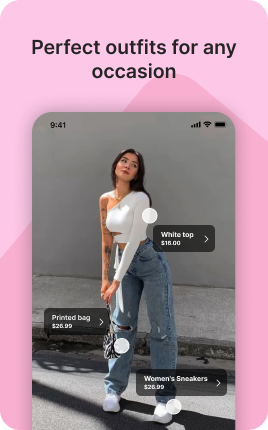
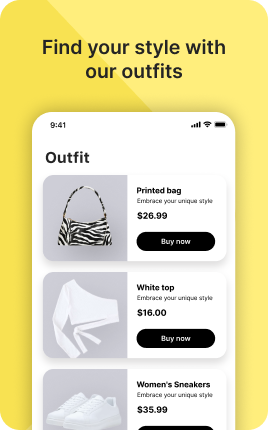
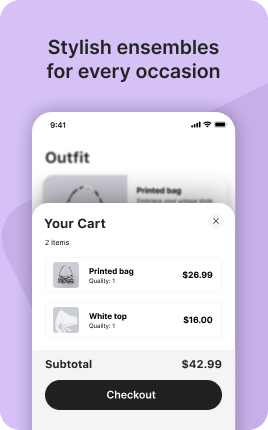

The Outfits Block displays full outfits or styled looks where each item is tagged with a buy or affiliate link. Visitors browse the lookbook, tap a tagged item to see details, and buy from your shop or affiliate partner. Perfect for fashion creators, stylists, lifestyle bloggers — the format is more inspirational than a flat product grid because visitors see how items work together rather than evaluating them in isolation.
Use cases
Concrete patterns we see UniLink creators apply most. Pick the closest to your situation as a starting point.
Fashion creator lookbook
Outfit-of-the-day posts where each piece tags to its purchase link (yours or affiliate). Captures the inspiration energy of Instagram with a direct path to buy.
Stylist portfolio with shop links
Personal stylists displaying styled looks for clients or content with tagged items. Demonstrates expertise while creating an affiliate revenue stream.
Capsule wardrobe collections
Brand-curated capsule wardrobes — five outfits from ten core pieces. The Outfits Block lets visitors see versatility before buying the capsule.
Seasonal trend rounds
Trend showcases — "Five fall outfits under $200" with each piece priced and shoppable. Especially powerful around seasonal moments when audiences are actively looking for inspiration.
How to add this block
From marketplace install to live on your link in bio. Each step takes seconds; the writing is what takes time.
- 1
Add the block from the marketplace
Open your UniLink dashboard, pick the page you want to sell on, and add the block from the marketplace. It appears empty so you can populate it with your own products or offers.
- 2
Connect your payment provider
UniLink supports Stripe, PayPal, WayForPay, and Fondy. Connect at least one in Settings → Payments so the block can collect money. Without this step the block is preview-only.
- 3
Add product details that sell
For each item, write a short outcome-led title, a benefit-led description, set the price, and upload at least one photo. Photos drive ~60% of conversion on link-in-bio commerce — invest in them.
- 4
Set inventory and shipping rules
If you ship physical goods, define shipping zones and rates. For digital and service products, mark them as "no shipping required" so the checkout skips the address step.
- 5
Publish and watch the dashboard
Hit publish and the block goes live. UniLink Analytics shows views, add-to-cart events, and revenue per product so you can iterate on what converts and what does not.
Best practices that move the needle
Small changes in writing or curation that consistently improve conversion.
One hero offer per block
Visitors decide in seconds. Lead with your strongest offer — bestseller, new launch, or biggest discount — and let the rest support it. A wall of equal items competes with itself.
Real photos beat stock every time
Phone-shot product photos out-convert generic stock images by 2-3x on link-in-bio. Visitors trust what looks real. Avoid stock unless you sell stock photography.
Price clearly, no hidden costs
List the all-in price including taxes where the law allows. Surprise costs at checkout are the #1 reason visitors abandon link-in-bio carts.
Test offers monthly
Rotate which offer leads the block every month. Track which version drives the highest revenue per visitor in Analytics. Stale offers go stale fast on social.
Frequently asked questions
What is an Outfits Block in a link in bio?
An Outfits Block displays styled outfits or product groupings where each item is tagged with details and buy links. Visitors tap items in the look to see price and link out to purchase. Built for fashion, lifestyle, and curated-product use cases.
Can I tag affiliate links?
Yes. Each tagged item supports any URL, including affiliate links from RewardStyle, ShopMy, Amazon Associates, etc. The Outfits Block tracks click-throughs per item so you measure which affiliate items convert best.
How is it different from the Shop Block?
Shop Block sells your own products in a grid. Outfits Block displays curated outfit groupings (your products or affiliate items) where the value is in the styling, not the catalog. Use Shop for direct catalog sales; use Outfits for inspirational shoppable content.
How many outfits should I include?
4-8 outfits is the practical range. Each outfit shows multiple items, so a block of 4-8 outfits already shows 16-40 individual products — enough variety without overwhelming.
Is the Outfits Block free on UniLink?
Yes for basic functionality. PRO plans add advanced features like automatic affiliate-tracking analytics and bulk import from product catalogs.
Related blocks
Pair this block with these to build a complete page on your link in bio.
Ready to add this block?
Drop it on any UniLink page in under a minute. Customize copy, visuals, and order without touching code.
Add to UniLink — free