




Gallery
Display a collection of images
5.1K +
Installs
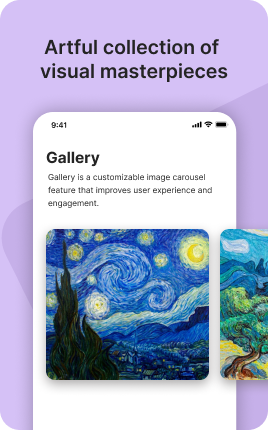
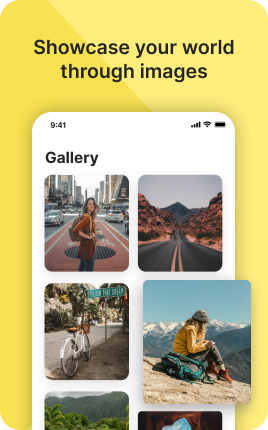
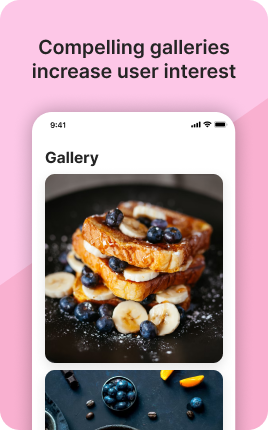
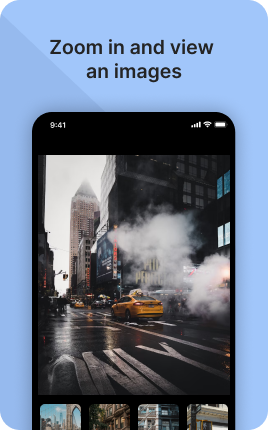
The Gallery Block transforms your link in bio into a visual portfolio. Visitors scroll through a grid of images, tap any to enlarge in a lightbox, and get an immediate sense of your aesthetic, work, or product range — without reading a single line of copy. It is the most impactful block for visual creators (photographers, designers, illustrators, makers), service businesses where the work is visual (interior designers, hairstylists, chefs), and product brands where the catalog deserves the spotlight. Each image carries an optional caption and link, so the gallery doubles as a navigation surface, not just a display.
Use cases
Concrete patterns we see UniLink creators apply most. Pick the closest to your situation as a starting point.
Photographer and visual artist portfolio
Show 9-15 of your strongest images. The Gallery Block presents them as a grid that expands on tap into a full-screen lightbox — visitors get the full visual impact without leaving your link in bio. Caption each image with a short title or client name to add context.
Designer and illustrator showcase
Display branding work, illustrations, packaging, type systems. Each image links to a case-study page, the client's site, or a deeper portfolio piece. The grid teases visitors into deeper exploration without the heaviness of a full portfolio page.
Restaurant and food business gallery
Hero plates from your menu, the room interior, the chef at work, behind-the-scenes prep. Food photography is one of the highest-converting types of imagery — a gallery before the menu makes visitors decide to come in before they even see the prices.
Maker and craft product line
Ceramics, jewelry, woodwork, candles, soap — show range and craftsmanship in a grid. Link each image to the product page in your Shop Block so the gallery doubles as a navigation route from "I want this" to checkout in one tap.
How to add this block
From marketplace install to live on your link in bio. Each step takes seconds; the writing is what takes time.
- 1
Add the block from the marketplace
Open your UniLink dashboard, pick the page where the block makes sense, and add it from the marketplace. It starts with placeholder content you can replace immediately.
- 2
Replace placeholders with real copy
Generic placeholder text is what kills SEO and conversion together. Write your actual copy — short, specific, and in your own voice — before you publish.
- 3
Add visuals that match your brand
Upload icons, photos, or illustrations that fit the rest of your link in bio. Mixed visual styles make the page feel templated — pick a style and stick to it across the block.
- 4
Reorder and curate
Drag items into the order that tells your story best. Hide items you don't need yet rather than deleting — easier to bring back when seasons or campaigns change.
- 5
Publish and iterate
Hit publish and review what visitors actually click in UniLink Analytics. Items that get zero clicks for two weeks are candidates for removal or rewriting.
Best practices that move the needle
Small changes in writing or curation that consistently improve conversion.
Lead with the most important item
The first item in the block gets disproportionate attention. Use it for what matters most — newest content, biggest news, or the strongest social proof. Treat the rest as supporting.
Keep titles short and scannable
Visitors skim — they don't read. Headlines under 8 words convert better. Long titles wrap awkwardly on mobile and lose impact even when they fit.
Refresh on a cadence
Stale content signals a stale brand. Set a recurring reminder — monthly, quarterly — to audit the block and update or remove items that no longer reflect what you do now.
Match visuals to your brand
Inconsistent visual style (mix of stock, illustrations, photos) makes the page feel templated. Pick a visual approach and apply it everywhere in the block.
Frequently asked questions
What is a Gallery Block in a link in bio?
A Gallery Block is a grid (or slider) of images embedded on your link in bio page. Visitors scroll through the images, tap any to enlarge in a lightbox view, and optionally click through to a linked URL. It is the primary block for visual portfolios, product catalogs, restaurant menus, and any other use case where pictures carry the message better than text.
How many images should I include?
9-15 for most use cases. Fewer than 6 looks empty; more than 20 dilutes individual impact and slows page load. If you have a larger body of work, curate ruthlessly — the goal of a link-in-bio gallery is to make a strong impression, not to be comprehensive. Link to a full portfolio site if visitors want more.
What image sizes work best?
Square (1:1) or vertical (4:5) aspect ratios work well for grid layouts; landscape (16:9) works for sliders. Source images should be at least 1080x1080 pixels for square — UniLink optimizes and serves smaller versions to mobile devices automatically. Compress files before upload to keep load times fast.
Does the gallery support video?
For mixed image-and-video content, use the Slider Block instead — it supports both natively. The Gallery Block is image-focused for performance reasons; mixing video into a 15-image grid would slow page load too much. For a single hero video, use the Video Block.
Can each image link to a different URL?
Yes. Each image has an optional link field. Common patterns: link to the project case study, to the product page in your Shop, to the YouTube video the photo is a still from, or to an external press piece. If no link is set, tapping the image just opens the lightbox.
Will the gallery work on mobile?
Yes. UniLink renders a mobile-optimized grid on small screens — typically 2 columns vs 3 on desktop — and the lightbox is fully responsive. Test the gallery on your phone after publishing because images that look powerful on a 27" monitor sometimes feel cramped on a 6" screen; you may need to adjust which images to feature.
How do I keep the gallery fresh?
Treat it like a curated exhibition, not an archive. Replace the bottom 2-3 images monthly with newer or more relevant work. Visitors who return notice the freshness; first-time visitors get your strongest current work. Stale galleries make a brand feel inactive even when nothing has changed in the rest of the bio.
Related blocks
Pair this block with these to build a complete page on your link in bio.
Ready-to-use apps in the marketplace
Try ready-made page templates built around this block — install with a single click.
Gallery
Image carousel that allows you to showcase your images content
Text
General text block to write anything you want
Links
Drive traffic to your website, blog, online store, or any web link
Form
Custom form to capture any information from your audience
Ask Me Anything
Let your fans submit questions — answer publicly or privately
Survey
Gather feedback and opinions from your audience with a survey
Wall
Let visitors post photos, text, or video on your page
Ready to add this block?
Drop it on any UniLink page in under a minute. Customize copy, visuals, and order without touching code.
Add to UniLink — free