




Reviews
Showcase customer reviews and feedback
3.7K +
Installs
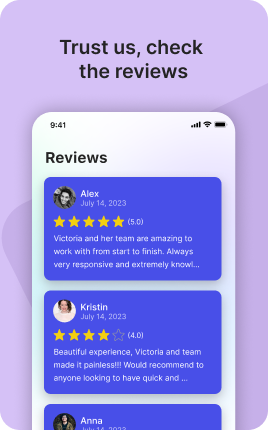
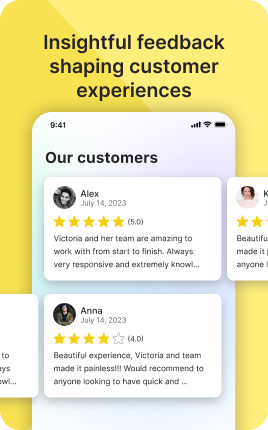
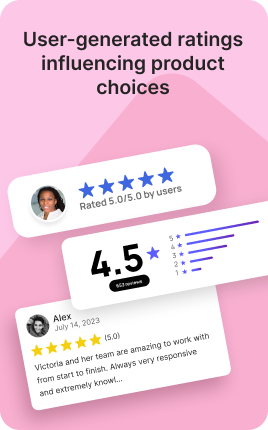
The Reviews Block displays customer testimonials and star ratings on your link in bio — the social proof visitors need before they trust you with money or time. Each review combines a rating, the customer's name, optional photo, and the actual review text. Reviews work because they shift the persuasion job from "you saying you're good" to "other people saying you're good", which carries dramatically more weight in any purchase decision. The trick is curating reviews that address specific objections, not collecting generic 5-star praise.
Use cases
Concrete patterns we see UniLink creators apply most. Pick the closest to your situation as a starting point.
E-commerce product reviews
Product reviews on your bio page lift conversion 30-60%. Pair the Reviews Block with a Shop Block — visitors see other buyers' experiences before clicking buy. Curate reviews that address specific concerns ("worried about size?", "is the photo accurate?") rather than generic "love it" reviews.
Service business client testimonials
Coaches, consultants, agencies, freelancers — testimonials that name specific outcomes ("Hired 3 senior engineers in 6 weeks", "Doubled my consulting revenue") convert prospects far better than generic praise. The Reviews Block presents these in a scannable format.
Local business credibility
Restaurants, salons, spas, fitness studios — local trust is everything. Display Google or Yelp reviews curated for the most useful ones (specific dishes, specific stylists, specific results) instead of relying on the algorithm to surface them. Pair with Trust Block for additional credibility signals.
Course and program testimonials
Online educators — student outcomes ("Got my first client within 2 months of finishing") drive enrollment more than features lists. Reviews from named alumni with their photos and a one-line outcome convert prospects into students at significantly higher rates.
How to add this block
From marketplace install to live on your link in bio. Each step takes seconds; the writing is what takes time.
- 1
Add the block from the marketplace
Open your UniLink dashboard, pick the page where the block makes sense, and add it from the marketplace. It starts with placeholder content you can replace immediately.
- 2
Replace placeholders with real copy
Generic placeholder text is what kills SEO and conversion together. Write your actual copy — short, specific, and in your own voice — before you publish.
- 3
Add visuals that match your brand
Upload icons, photos, or illustrations that fit the rest of your link in bio. Mixed visual styles make the page feel templated — pick a style and stick to it across the block.
- 4
Reorder and curate
Drag items into the order that tells your story best. Hide items you don't need yet rather than deleting — easier to bring back when seasons or campaigns change.
- 5
Publish and iterate
Hit publish and review what visitors actually click in UniLink Analytics. Items that get zero clicks for two weeks are candidates for removal or rewriting.
Best practices that move the needle
Small changes in writing or curation that consistently improve conversion.
Lead with the most important item
The first item in the block gets disproportionate attention. Use it for what matters most — newest content, biggest news, or the strongest social proof. Treat the rest as supporting.
Keep titles short and scannable
Visitors skim — they don't read. Headlines under 8 words convert better. Long titles wrap awkwardly on mobile and lose impact even when they fit.
Refresh on a cadence
Stale content signals a stale brand. Set a recurring reminder — monthly, quarterly — to audit the block and update or remove items that no longer reflect what you do now.
Match visuals to your brand
Inconsistent visual style (mix of stock, illustrations, photos) makes the page feel templated. Pick a visual approach and apply it everywhere in the block.
Frequently asked questions
What is a Reviews Block in a link in bio?
A Reviews Block displays customer reviews on your link in bio page. Each review includes a star rating (or other rating system), the reviewer's name and optional photo, and the review text itself. The block presents reviews in a scannable format — typically a slider, grid, or stacked list — so visitors can quickly absorb social proof.
Where do the reviews come from?
You add them manually in the dashboard — typically by copying from emails, Google reviews, Yelp, social DMs, etc. UniLink doesn't auto-pull from third-party review platforms. The trade-off: more setup time, but you curate exactly which reviews appear (best ones, most representative, addressing specific objections).
Should I include only 5-star reviews?
Counterintuitively, a mix of 4 and 5-star reviews builds more trust than only 5-star. All-perfect reviews trigger skepticism (fake?). Including a 4-star review that mentions a small downside ("Took longer to ship than expected, but quality was great") signals authentic curation and lifts overall trust in all reviews.
How many reviews should I include?
5-12 is the sweet spot. Fewer than 5 looks sparse. More than 12 dilutes the impact of each — visitors won't read all of them, and the marginal trust gain past the 12th review is minimal. Curate ruthlessly: pick the most specific, most useful, most outcome-focused reviews.
Should I include photos with reviews?
Yes when possible. Reviews with photos of the reviewer (or their result) are 2-3x more persuasive than text-only reviews because they prove the reviewer is a real person, not a fake. Ask for photo permission when collecting testimonials; for in-person customers, photos taken at your business work too.
How do I get good testimonials?
Ask. Most happy customers will write a testimonial if you ask within 1-2 weeks of the positive experience while it's fresh. Make it easy: send a 2-question email ("What was the situation before?" "What changed after?") and edit their response into a testimonial format with their permission.
Is the Reviews Block free on UniLink?
Yes. The Reviews Block is included on every UniLink plan, including the free tier. There are no limits on the number of reviews you can display or how often you update them. PRO plans add advanced features like automatic Google Reviews sync and review-request automation via email after purchase.
Related blocks
Pair this block with these to build a complete page on your link in bio.
Ready to add this block?
Drop it on any UniLink page in under a minute. Customize copy, visuals, and order without touching code.
Add to UniLink — free