




Highlights
Showcase your important links and content
6.5K +
Installs
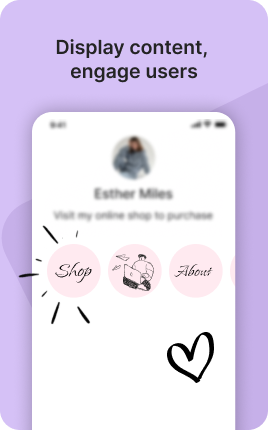
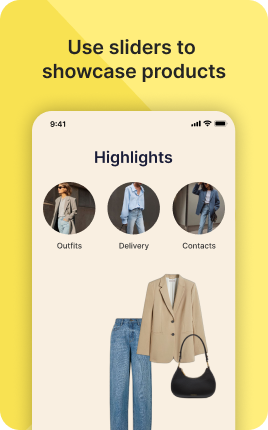
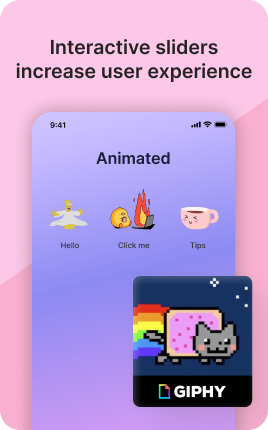

The Highlights Block puts your strongest numbers front and center — followers, students taught, products shipped, years in business, awards won. Numbers anchor attention and signal credibility better than any adjective. "10,000+ creators trust us" works on a level "many creators trust us" never will. Use the Highlights Block when the visitor needs proof that you're the real deal: above a sales offer, beside a portfolio, before a long-form bio. Three to five stats is the sweet spot — fewer feels thin, more starts to read like a brag list.
Use cases
Concrete patterns we see UniLink creators apply most. Pick the closest to your situation as a starting point.
Social proof for service businesses
Coaches, agencies, consultants — show "150+ clients served", "12 industries", "8 years in business", "97% client retention". These numbers compress a decade of work into four numbers visitors absorb instantly. Each one earns the right to charge premium rates.
Creator scale and reach
YouTubers, podcasters, newsletter writers — "85K subscribers", "2M total downloads", "Top 1% of podcasts on Apple", "120 episodes published". Visitors who see scale follow because scale signals quality and longevity in a way new follower counts never can.
Course and program outcomes
Online educators — "1,200 students enrolled", "92% completion rate", "Average rating 4.8/5", "Featured in Forbes". Outcomes outperform inputs in conversion: "students enrolled" beats "10 modules" because outcomes prove the course works.
Local business credibility
Restaurants, salons, studios, shops — "Open since 2014", "12 stylists", "4.9 stars on Google", "5,000 happy customers". Local businesses live and die on trust signals; a Highlights Block consolidates them in one scannable strip near the top of the page.
How to add this block
From marketplace install to live on your link in bio. Each step takes seconds; the writing is what takes time.
- 1
Add the block from the marketplace
Open your UniLink dashboard, pick the page where the block makes sense, and add it from the marketplace. It starts with placeholder content you can replace immediately.
- 2
Replace placeholders with real copy
Generic placeholder text is what kills SEO and conversion together. Write your actual copy — short, specific, and in your own voice — before you publish.
- 3
Add visuals that match your brand
Upload icons, photos, or illustrations that fit the rest of your link in bio. Mixed visual styles make the page feel templated — pick a style and stick to it across the block.
- 4
Reorder and curate
Drag items into the order that tells your story best. Hide items you don't need yet rather than deleting — easier to bring back when seasons or campaigns change.
- 5
Publish and iterate
Hit publish and review what visitors actually click in UniLink Analytics. Items that get zero clicks for two weeks are candidates for removal or rewriting.
Best practices that move the needle
Small changes in writing or curation that consistently improve conversion.
Lead with the most important item
The first item in the block gets disproportionate attention. Use it for what matters most — newest content, biggest news, or the strongest social proof. Treat the rest as supporting.
Keep titles short and scannable
Visitors skim — they don't read. Headlines under 8 words convert better. Long titles wrap awkwardly on mobile and lose impact even when they fit.
Refresh on a cadence
Stale content signals a stale brand. Set a recurring reminder — monthly, quarterly — to audit the block and update or remove items that no longer reflect what you do now.
Match visuals to your brand
Inconsistent visual style (mix of stock, illustrations, photos) makes the page feel templated. Pick a visual approach and apply it everywhere in the block.
Frequently asked questions
What is a Highlights Block in a link in bio?
A Highlights Block is a row of numbers paired with short labels — typically 3-5 stats that establish your scale, longevity, or social proof. Each highlight has a number ("10K+", "92%", "4.8★"), a label ("happy clients", "completion rate", "average rating"), and optionally an icon. The block is visually compact but information-dense, designed for scanning.
How is it different from the Stats Block?
The Stats Block is more flexible — full custom stats with any layout, suitable for things like growth charts or detailed metrics. The Highlights Block is opinionated for credibility numbers specifically: scale (followers, customers), longevity (years), quality (ratings), and outcomes (completion rates). Use Highlights for credibility, Stats for richer data presentation.
How many highlights should I include?
3-5 is the sweet spot. Three feels intentional; five fills a row nicely on desktop. Going past five starts to look like bragging, and on mobile the row breaks awkwardly. Pick the strongest five and cut the rest — visitors remember three excellent numbers better than seven mediocre ones.
Should the numbers be exact or rounded?
Round to a level that signals confidence. "10,000+" reads better than "10,247" because the round number feels intentional and the exact number feels accidental (and ages quickly). Exception: ratings and percentages where the precise number IS the point — "4.8/5" beats "almost 5/5".
Where on the page should the Highlights Block go?
Near the top of the page, ideally directly under the Header Block or Banner Block. Visitors form their credibility impression in the first 5 seconds; highlights at the top feed that impression directly. Placing them at the bottom buries them under the body of the page, where most visitors won't see them.
How often should I update the numbers?
Update at least quarterly. Stale numbers ("2 years in business" that were true 4 years ago) actively hurt — visitors notice and trust drops. Set a calendar reminder. For growing numbers like follower counts, set a threshold ("update once we cross 50K") so updates feel like milestones, not chores.
Is the Highlights Block free on UniLink?
Yes. The Highlights Block is included on every UniLink plan, including the free tier. There are no limits on how many highlights you can include or how often you update them. Most users keep one Highlights Block per page; some use two for different categories of credibility (e.g., scale on top, awards near the bottom).
Related blocks
Pair this block with these to build a complete page on your link in bio.
Ready to add this block?
Drop it on any UniLink page in under a minute. Customize copy, visuals, and order without touching code.
Add to UniLink — free