




Services
List services and prices on your page
5.2K +
Installs
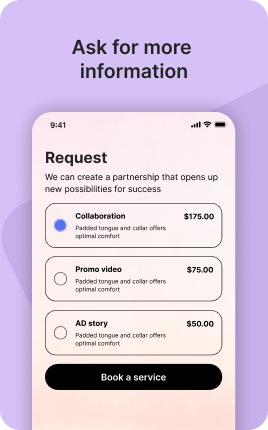
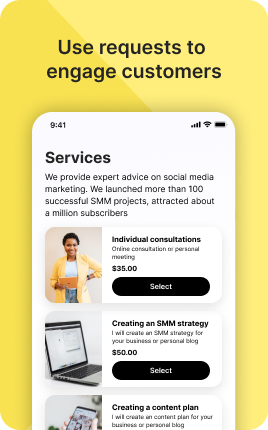
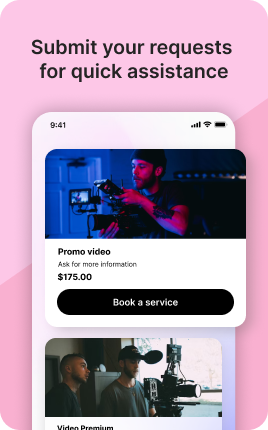
The Services Block is a structured way to display the services your business offers — coaching packages, consulting tiers, freelance offerings, professional services, beauty treatments. Each service shows a name, short description, optional duration, optional price, and an action button (book, contact, or learn more). It is the right block for businesses where the offering is the conversation, not a product on a shelf — coaches, agencies, consultants, professional services. Visitors who scan the Services Block and pick the right offering for them arrive much better qualified than visitors who only know "you do something".
Use cases
Concrete patterns we see UniLink creators apply most. Pick the closest to your situation as a starting point.
Coaching and consulting packages
Three or four packages — discovery call, single session, monthly retainer, intensive program — each with what's included and a clear price or "from $X" range. Tiered packages let prospects self-select the right fit before booking.
Agency and freelance services
Web design, branding, content production, technical consulting — list services with starting prices, typical timelines, and what's included at each tier. Prospects who self-qualify with the right service arrive ready to talk specifics, not "what do you do?"
Beauty, wellness, and personal services
Hair, nails, massage, training — services with duration, price, and a direct link to the Booking Block for that specific service. Visitors go from "what do they offer" to "I want this haircut" to "booked" in seconds.
Professional and trade services
Plumbing, electrical, legal, accounting — itemized services with starting prices ("From $150 for emergency call-out"). Transparent pricing differentiates you from competitors who hide behind "call for quote" — visitors prefer businesses that respect their time.
How to add this block
From marketplace install to live on your link in bio. Each step takes seconds; the writing is what takes time.
- 1
Add the block from the marketplace
Open your UniLink dashboard, pick the page where the block makes sense, and add it from the marketplace. It starts with placeholder content you can replace immediately.
- 2
Replace placeholders with real copy
Generic placeholder text is what kills SEO and conversion together. Write your actual copy — short, specific, and in your own voice — before you publish.
- 3
Add visuals that match your brand
Upload icons, photos, or illustrations that fit the rest of your link in bio. Mixed visual styles make the page feel templated — pick a style and stick to it across the block.
- 4
Reorder and curate
Drag items into the order that tells your story best. Hide items you don't need yet rather than deleting — easier to bring back when seasons or campaigns change.
- 5
Publish and iterate
Hit publish and review what visitors actually click in UniLink Analytics. Items that get zero clicks for two weeks are candidates for removal or rewriting.
Best practices that move the needle
Small changes in writing or curation that consistently improve conversion.
Lead with the most important item
The first item in the block gets disproportionate attention. Use it for what matters most — newest content, biggest news, or the strongest social proof. Treat the rest as supporting.
Keep titles short and scannable
Visitors skim — they don't read. Headlines under 8 words convert better. Long titles wrap awkwardly on mobile and lose impact even when they fit.
Refresh on a cadence
Stale content signals a stale brand. Set a recurring reminder — monthly, quarterly — to audit the block and update or remove items that no longer reflect what you do now.
Match visuals to your brand
Inconsistent visual style (mix of stock, illustrations, photos) makes the page feel templated. Pick a visual approach and apply it everywhere in the block.
Frequently asked questions
What is a Services Block in a link in bio?
A Services Block displays a structured list of services your business offers, each with a name, short description, optional duration, optional price, and an action button. It is built for service businesses where visitors need to see what you offer at what price before deciding to book or contact you.
How is it different from the Menu / Price List Block?
The Menu / Price List Block is more catalog-like — many items in many categories (restaurant menu, salon price list with 30+ services). The Services Block is more focused — typically 3-8 distinct service offerings with deeper descriptions of what each includes. Use Menu for breadth, Services for depth.
Can I link each service to a Booking Block?
Yes. Each service's action button can link to a specific Booking Block configured for that service's duration and price. Visitors go from browsing to booking in one tap, with the right time slot and price already pre-selected.
Should I show prices?
Yes when possible. Transparent pricing converts. If the price varies by scope, show "Starting at $X" or "From $X-Y/month" — anchoring expectations prevents wasted discovery calls with prospects who can't afford you. Hidden pricing reduces conversion meaningfully.
Is the Services Block free on UniLink?
Yes. The Services Block is included on every UniLink plan, including the free tier. There are no limits on the number of services or how often you update them.
Related blocks
Pair this block with these to build a complete page on your link in bio.
Ready to add this block?
Drop it on any UniLink page in under a minute. Customize copy, visuals, and order without touching code.
Add to UniLink — free