




Menu and Price List
Showcase digital menu or service prices on your page
2.9K +
Installs
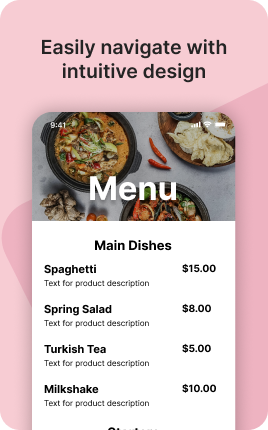
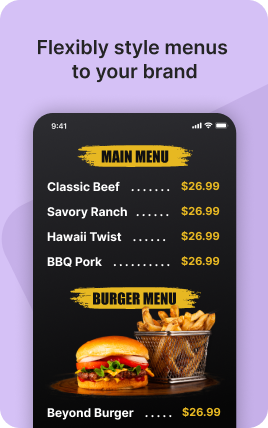
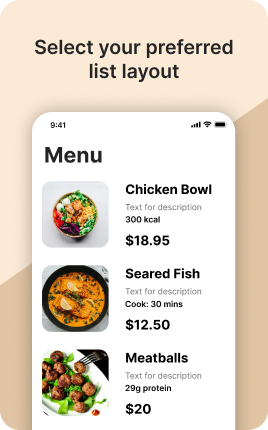
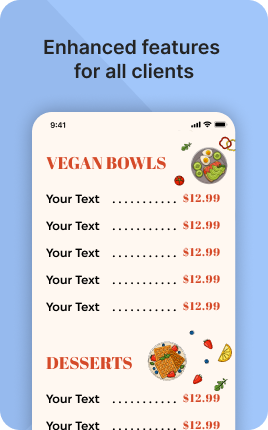
The Menu / Price List Block is the digital replacement for printed menus and laminated price sheets. Restaurants list dishes by category with photos, descriptions, and prices; salons list services with duration and pricing; consultants list packages with what's included. Visitors scroll, scan, and decide before they ever interact with you, which means by the time they walk in or fill out a contact form they already know what they want — a much higher-intent customer than someone who only knows the business exists.
Use cases
Concrete patterns we see UniLink creators apply most. Pick the closest to your situation as a starting point.
Restaurant menus
Categories (Starters, Mains, Desserts, Drinks) with each dish showing a photo, description, allergen info, and price. The Menu Block updates instantly so price changes or seasonal items roll out without reprinting. QR codes on tables can link directly to your bio for in-restaurant browsing.
Salon and barbershop price lists
Hair, nails, beauty services — each line shows service name, duration, and price. Visitors choose what they want before booking and feel comfortable about cost. The Menu Block can link directly to a Booking Block for the chosen service, so menu-to-booking is one tap.
Coaching and consulting packages
Three-tier package menus — basic, standard, premium — with what's included in each. Tiered menus help prospects self-select the package that fits their budget and timeline, qualifying them before the discovery call.
Services for trades and home services
Plumbing, electrical, cleaning, landscaping — itemized service prices ("clog removal $90", "panel upgrade from $1500"). Transparent pricing differentiates you from competitors who say "call for quote" — visitors who see prices upfront contact you instead of competitors who don't.
How to add this block
From marketplace install to live on your link in bio. Each step takes seconds; the writing is what takes time.
- 1
Add the block from the marketplace
Open your UniLink dashboard, pick the page you want to sell on, and add the block from the marketplace. It appears empty so you can populate it with your own products or offers.
- 2
Connect your payment provider
UniLink supports Stripe, PayPal, WayForPay, and Fondy. Connect at least one in Settings → Payments so the block can collect money. Without this step the block is preview-only.
- 3
Add product details that sell
For each item, write a short outcome-led title, a benefit-led description, set the price, and upload at least one photo. Photos drive ~60% of conversion on link-in-bio commerce — invest in them.
- 4
Set inventory and shipping rules
If you ship physical goods, define shipping zones and rates. For digital and service products, mark them as "no shipping required" so the checkout skips the address step.
- 5
Publish and watch the dashboard
Hit publish and the block goes live. UniLink Analytics shows views, add-to-cart events, and revenue per product so you can iterate on what converts and what does not.
Best practices that move the needle
Small changes in writing or curation that consistently improve conversion.
One hero offer per block
Visitors decide in seconds. Lead with your strongest offer — bestseller, new launch, or biggest discount — and let the rest support it. A wall of equal items competes with itself.
Real photos beat stock every time
Phone-shot product photos out-convert generic stock images by 2-3x on link-in-bio. Visitors trust what looks real. Avoid stock unless you sell stock photography.
Price clearly, no hidden costs
List the all-in price including taxes where the law allows. Surprise costs at checkout are the #1 reason visitors abandon link-in-bio carts.
Test offers monthly
Rotate which offer leads the block every month. Track which version drives the highest revenue per visitor in Analytics. Stale offers go stale fast on social.
Frequently asked questions
What is a Menu / Price List Block in a link in bio?
A Menu / Price List Block is a structured catalog of items with categories, photos, descriptions, and prices. It is built for restaurants, salons, service businesses, and any business that publishes a menu of offerings. Items are organized by category for easy scanning, and the block can include allergen info, duration, or other relevant metadata per item.
How is it different from the Shop Block?
The Shop Block is built for direct purchases — visitors add to cart and check out. The Menu / Price List Block is built for browsing and informing — visitors see what you offer and what it costs, then decide whether to book, visit, or contact you. For products you sell directly online, use Shop. For menus where the conversion happens elsewhere (in-person, by phone, via Booking Block), use Menu.
Can I include photos for each item?
Yes. Photos are optional but strongly recommended for restaurants — food photography lifts conversion 30-50%. For service businesses where photos add little (legal, accounting, IT services), text-only menus work fine and stay scannable.
How do I organize by category?
Each item is assigned to a category (Starters, Mains, Hair, Nails, etc.) and the block groups them automatically with category headings. Drag categories to reorder; drag items within a category to set sequence. Most popular items belong at the top of each category.
Can prices be hidden until contact?
Yes — set a price to "Contact for pricing" instead of a number. Useful for high-end services where the price varies by scope or for premium offerings where revealing the price upfront could trigger sticker shock. Use sparingly: hidden prices reduce the conversion benefit of the block.
Can items link to a Booking Block or Shop Block?
Yes. Each menu item supports an optional link to elsewhere on your link in bio — a Booking Block for service appointments, a Shop Block for purchasable items, or an external URL. This turns the menu from purely informational into an active funnel.
Is the Menu / Price List Block free on UniLink?
Yes. The Menu / Price List Block is included on every UniLink plan, including the free tier. There are no limits on the number of items, categories, or photos. PRO plans add advanced features like seasonal scheduling (auto-show summer menu June-August) and multi-language support.
Related blocks
Pair this block with these to build a complete page on your link in bio.
Ready to add this block?
Drop it on any UniLink page in under a minute. Customize copy, visuals, and order without touching code.
Add to UniLink — free