




Bank/Crypto Wallet
Share your bank account details or crypto wallet
7.1K +
Installs
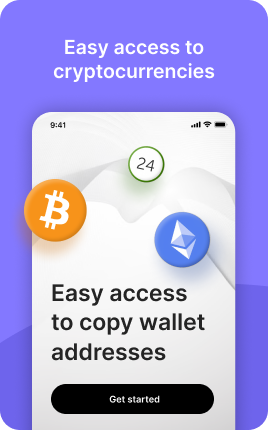
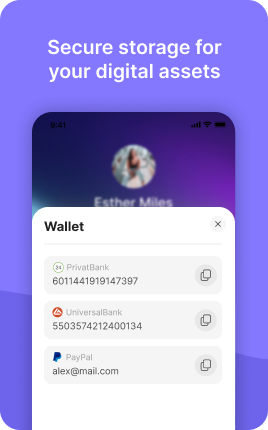
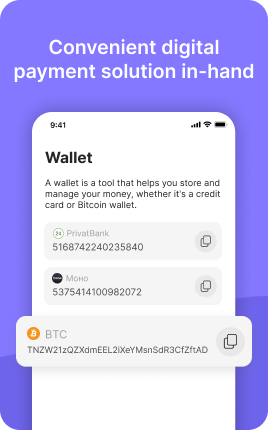
The Wallet & Bank Details Block is a tap-to-copy display for payment-receiving information that does not fit elsewhere — crypto wallet addresses, IBAN numbers, bank account details, PayPal handles, Venmo usernames, Cash App tags. Visitors who want to pay you outside of card-based checkout (international wire, cryptocurrency, peer-to-peer) need easy access to this data; the Wallet & Bank Details Block provides it without requiring them to message you separately. Common use cases: international freelancers, crypto-native creators, donation-driven projects, B2B invoicing on link in bio.
Use cases
Concrete patterns we see UniLink creators apply most. Pick the closest to your situation as a starting point.
Crypto wallet addresses for tips and donations
Bitcoin, Ethereum, USDT, Solana, TON — list your wallet addresses with QR codes for one-scan paying. Common for creators with crypto-native audiences who prefer on-chain payments to credit cards. Pair with the Tips & Donations Block for visitors who prefer fiat.
International freelancer bank info
Freelancers working with international clients — display IBAN, SWIFT/BIC, and account name for wire transfers. Saves the back-and-forth of clients asking for invoice details and copying them from PDFs. Combined with a Form Block to collect company info for proper invoicing.
B2B payment options
For B2B work where wire transfers and checks are still common, the block displays bank info that accounting departments need. International payments often require this regardless of how online your business otherwise is — clients' AP teams have their own rules.
P2P payment handles
Venmo, Cash App, Zelle, Wise — display your handles with copy buttons. Useful for splitting bills with collaborators, accepting tips from US-based audience members, or low-friction P2P transfers that avoid Stripe fees on small amounts.
How to add this block
From marketplace install to live on your link in bio. Each step takes seconds; the writing is what takes time.
- 1
Add the block from the marketplace
Open your UniLink dashboard, pick the page you want to sell on, and add the block from the marketplace. It appears empty so you can populate it with your own products or offers.
- 2
Connect your payment provider
UniLink supports Stripe, PayPal, WayForPay, and Fondy. Connect at least one in Settings → Payments so the block can collect money. Without this step the block is preview-only.
- 3
Add product details that sell
For each item, write a short outcome-led title, a benefit-led description, set the price, and upload at least one photo. Photos drive ~60% of conversion on link-in-bio commerce — invest in them.
- 4
Set inventory and shipping rules
If you ship physical goods, define shipping zones and rates. For digital and service products, mark them as "no shipping required" so the checkout skips the address step.
- 5
Publish and watch the dashboard
Hit publish and the block goes live. UniLink Analytics shows views, add-to-cart events, and revenue per product so you can iterate on what converts and what does not.
Best practices that move the needle
Small changes in writing or curation that consistently improve conversion.
One hero offer per block
Visitors decide in seconds. Lead with your strongest offer — bestseller, new launch, or biggest discount — and let the rest support it. A wall of equal items competes with itself.
Real photos beat stock every time
Phone-shot product photos out-convert generic stock images by 2-3x on link-in-bio. Visitors trust what looks real. Avoid stock unless you sell stock photography.
Price clearly, no hidden costs
List the all-in price including taxes where the law allows. Surprise costs at checkout are the #1 reason visitors abandon link-in-bio carts.
Test offers monthly
Rotate which offer leads the block every month. Track which version drives the highest revenue per visitor in Analytics. Stale offers go stale fast on social.
Frequently asked questions
What is a Wallet & Bank Details Block in a link in bio?
A Wallet & Bank Details Block is a copy-and-paste display for payment information that doesn't fit standard checkout flows — cryptocurrency wallet addresses, IBAN numbers, bank routing/account info, PayPal/Venmo/Cash App handles. Visitors tap to copy any field; for crypto, optional QR codes let visitors scan-to-pay from a wallet app.
Is it safe to put my bank info publicly?
Yes for receiving-only information. IBAN, account number, and routing number are designed to be shared — they only let people send money TO you, not take money FROM you. Crypto addresses are the same: receive-only by design. NEVER put a private key, password, or seed phrase in this block; UniLink will warn you, but the block trusts you to know the difference.
Which cryptocurrencies are supported?
Any. The block stores wallet addresses as text strings — Bitcoin, Ethereum, USDT (any chain), Solana, TON, Cardano, Litecoin, etc. UniLink generates QR codes for the addresses automatically. Verify addresses with a small test transfer before publishing — typos in crypto addresses send funds to nowhere recoverably.
Can I show multiple currencies in one block?
Yes. Group fiat bank info, crypto addresses, and P2P handles in the same block organized by section. Visitors pick the option that works for them. For audiences split between fiat and crypto, this consolidates the choices in one place rather than splitting across two blocks.
How does QR code generation work?
For each wallet address you add, UniLink generates a corresponding QR code displayed in the block. Visitors scan with their wallet app (Trust Wallet, MetaMask, Phantom, TON Space) and the address fills in automatically. This dramatically reduces address-typing errors that send funds to wrong wallets.
Should I worry about chargebacks on this block?
Most wallet/bank info supported here is non-reversible (crypto, wire, Zelle), so chargebacks aren't a normal risk. Card-based payments (where chargebacks happen) belong in Shop, Single Product, or Tips & Donations Blocks instead. Use Wallet & Bank Details specifically for the non-card payment paths.
Is the Wallet & Bank Details Block free on UniLink?
Yes. The Wallet & Bank Details Block is included on every UniLink plan, including the free tier. There are no limits on the number of wallet addresses or bank details you can list. PRO plans add advanced features like balance display from public chain data and IBAN validation on input.
Related blocks
Pair this block with these to build a complete page on your link in bio.
Ready to add this block?
Drop it on any UniLink page in under a minute. Customize copy, visuals, and order without touching code.
Add to UniLink — free