




Banner
Display full size banner on your page
3.8K +
Installs
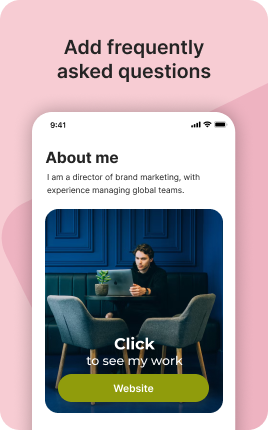
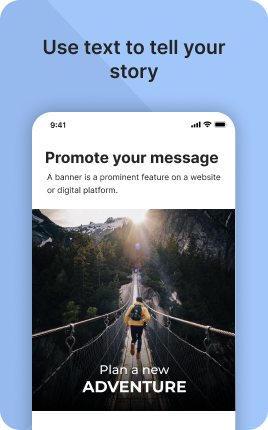
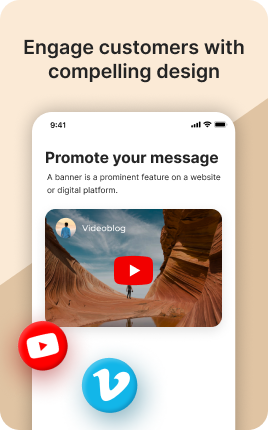
The Banner Block is the loudest piece of real estate on a link in bio — a full-width strip that visitors see before anything else. Use it to announce a launch, frame a sale, introduce yourself, or push the single action you most want a visitor to take. Because it occupies the top of the page above all other blocks, it sets the tone for everything below; a sloppy banner makes the rest of the page feel sloppy too. Pair a high-contrast headline with a single visible call-to-action and a focused background image, and the Banner Block becomes the highest-converting surface on your entire link in bio.
Use cases
Concrete patterns we see UniLink creators apply most. Pick the closest to your situation as a starting point.
Product launches and announcements
When you ship something new — a course, an album, a collection drop — put it in the Banner Block. The full-width treatment frames the launch as a moment, not just another item in the list. Pair it with a countdown for extra urgency.
Limited-time sales and promotions
Black Friday, anniversary discounts, flash sales — banners make scarcity visible. Use a clear timeframe ("ends Sunday at midnight") and one button that goes straight to the discounted page. Drop the banner the moment the sale ends.
Lead magnets and email capture
Offer a free guide, checklist, or template in exchange for an email. The Banner Block frames the trade — give X to get Y — and the prominent button drives form submissions far better than the same offer buried lower on the page.
Personal introduction for creators
New visitors who land on your link in bio without context need to know who you are in seconds. A banner with your photo, one-line value proposition, and "About me" or "Latest work" button orients them and reduces immediate bounces.
How to add this block
From marketplace install to live on your link in bio. Each step takes seconds; the writing is what takes time.
- 1
Add the block from the marketplace
Open your UniLink dashboard, drag the block to the position where it makes the strongest impact — typically near the top of the page so visitors see it immediately.
- 2
Upload or link your media
Upload directly from your device or paste a URL (YouTube, Vimeo, Instagram). For uploads, UniLink optimizes file size and format automatically — no manual encoding needed.
- 3
Configure layout and aspect ratio
Pick the aspect ratio that matches your media — 16:9 for landscape video, 9:16 for vertical, 1:1 for square. Mismatched aspect ratios crop or letterbox awkwardly.
- 4
Add caption or call-to-action
A short caption tells visitors what they're looking at and why it matters. Pair it with a CTA button if the media should drive clicks elsewhere.
- 5
Publish and check on mobile
Most link-in-bio traffic is mobile. After publishing, open the page on your phone — media that looks great on desktop sometimes loads slowly or crops poorly on mobile.
Best practices that move the needle
Small changes in writing or curation that consistently improve conversion.
Optimize for mobile first
Over 80% of link-in-bio traffic is mobile. Test on a real phone, not just browser dev-tools. Slow loads or weird cropping on mobile is the fastest way to lose visitors.
Compress before uploading
A 50MB video that looks identical at 5MB just costs your visitors more bandwidth. Compress with Handbrake, ffmpeg, or a free online tool before upload.
One strong piece beats five weak
Tempting to fill the block with everything you have. Resist — one excellent video or banner outperforms five mediocre ones. Curate ruthlessly.
Captions for accessibility and silent autoplay
Most mobile users browse with sound off. Add captions or subtitles so the message lands even without audio. This also improves SEO via transcripts.
Frequently asked questions
What is a Banner Block in a link in bio?
A Banner Block is a full-width hero section at the top of your link in bio page that combines an image or background, a headline, optional supporting text, and one or two call-to-action buttons. It is the first thing visitors see, so it carries most of the responsibility for setting the tone of the page and driving the primary action you want from visitors.
What size should the banner image be?
Aim for at least 1600 pixels wide and around 600-800 pixels tall for the source image. UniLink will resize automatically for smaller screens, but starting from a high-resolution source keeps the banner sharp on retina displays. Keep the file under 500 KB after compression so the page loads fast on mobile networks.
How many CTAs should I put in the banner?
One primary CTA, optionally a secondary text link. More than two buttons in a banner causes choice paralysis and lowers click rates on every option. If you have several actions you want visitors to take, lead with the most important one in the banner and put the rest in dedicated blocks below.
Should the banner have video, image, or just color?
Image is the safest default — fast to load, works everywhere, easy to swap out. Video grabs attention but eats mobile data and adds load time, so reserve it for premium launches where the budget exists for a great video. Solid color or gradient banners work for minimalist brands where the headline carries the message.
How often should I update my Banner Block?
Treat it like a billboard — refresh whenever the message goes stale. Active creators rotate banners every 2-4 weeks; brands at scale match banner content to active campaigns. The signal of freshness ("new this week") often matters more than the specific content of the message.
Will the banner work on mobile?
Yes, UniLink renders a mobile-optimized version of every Banner Block automatically. That said, always test on a real phone after publishing — text that is readable on a 27-inch monitor sometimes needs a larger font on a 6-inch screen. Adjust the headline size in block settings if needed.
Is the Banner Block free on UniLink?
Yes. The Banner Block is included on every UniLink plan, including the free tier. You can use it on any page of your link in bio with no limits on how often you change the content, image, or call-to-action.
Related blocks
Pair this block with these to build a complete page on your link in bio.
Ready to add this block?
Drop it on any UniLink page in under a minute. Customize copy, visuals, and order without touching code.
Add to UniLink — free