




Courses or Tutorials
Create course with modules and lessons
5K +
Installs
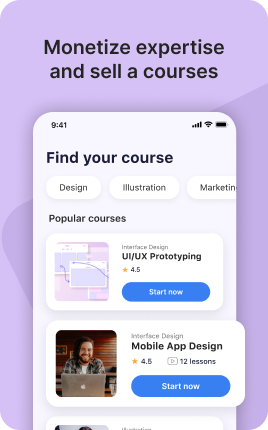
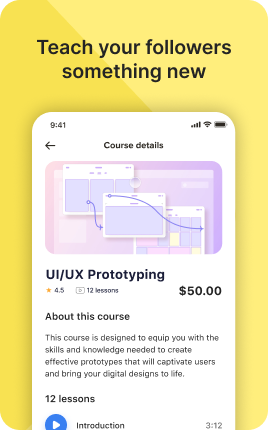
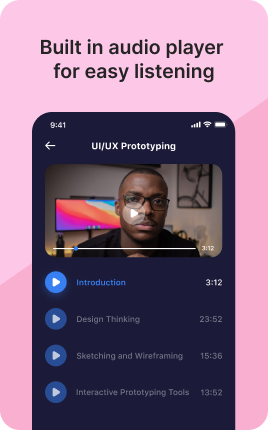
The Courses & Tutorials Block is a structured way to display and sell online courses directly from your link in bio. Each course has a title, description, lesson count, total duration, optional preview, and price. Visitors browse the catalog, see what's included, and buy or enroll without leaving the bio. For educators selling structured learning content (single courses, course bundles, ongoing tutorial series), this block replaces the friction of redirecting to an external course platform.
Use cases
Concrete patterns we see UniLink creators apply most. Pick the closest to your situation as a starting point.
Self-paced video courses
Display courses with lesson counts, total duration, and module breakdowns. Perfect for educators selling structured curriculum content via Vimeo, YouTube unlisted, or self-hosted video.
Course bundles and learning paths
Bundle related courses at a discounted total. The block shows what's included in each bundle and the saving compared to buying separately.
Tutorial series and ongoing content
For YouTubers and creators with episodic tutorials, the Courses & Tutorials Block organizes the series so new viewers know where to start and which lessons follow.
Free preview lessons
Mark one or two lessons as "free preview" to let prospective buyers sample before purchasing. This lifts conversion meaningfully — visitors who watch a preview convert at much higher rates than those who only see a description.
How to add this block
From marketplace install to live on your link in bio. Each step takes seconds; the writing is what takes time.
- 1
Add the block from the marketplace
Open your UniLink dashboard, pick the page where the block makes sense, and add it from the marketplace. It starts with placeholder content you can replace immediately.
- 2
Replace placeholders with real copy
Generic placeholder text is what kills SEO and conversion together. Write your actual copy — short, specific, and in your own voice — before you publish.
- 3
Add visuals that match your brand
Upload icons, photos, or illustrations that fit the rest of your link in bio. Mixed visual styles make the page feel templated — pick a style and stick to it across the block.
- 4
Reorder and curate
Drag items into the order that tells your story best. Hide items you don't need yet rather than deleting — easier to bring back when seasons or campaigns change.
- 5
Publish and iterate
Hit publish and review what visitors actually click in UniLink Analytics. Items that get zero clicks for two weeks are candidates for removal or rewriting.
Best practices that move the needle
Small changes in writing or curation that consistently improve conversion.
Lead with the most important item
The first item in the block gets disproportionate attention. Use it for what matters most — newest content, biggest news, or the strongest social proof. Treat the rest as supporting.
Keep titles short and scannable
Visitors skim — they don't read. Headlines under 8 words convert better. Long titles wrap awkwardly on mobile and lose impact even when they fit.
Refresh on a cadence
Stale content signals a stale brand. Set a recurring reminder — monthly, quarterly — to audit the block and update or remove items that no longer reflect what you do now.
Match visuals to your brand
Inconsistent visual style (mix of stock, illustrations, photos) makes the page feel templated. Pick a visual approach and apply it everywhere in the block.
Frequently asked questions
What is a Courses & Tutorials Block in a link in bio?
A Courses & Tutorials Block displays structured courses or tutorial series on your link in bio with lesson counts, durations, descriptions, and prices. Visitors browse the catalog and can purchase or enroll directly via Stripe, PayPal, or other connected payment providers.
How are course videos delivered?
You can host videos on Vimeo (private), YouTube unlisted, or self-host via UniLink. After purchase, students get access to a private course page with the video lessons, progress tracking, and downloadable resources.
Can I gate access by membership tier?
Yes when paired with the Membership Block. PRO-tier members can access courses included in their tier, while non-members see a "Members only" prompt.
Do students get a certificate?
On PRO plans, yes — automatic completion certificates with the student's name and course title can be issued when all lessons are marked complete. Useful for professional development and CPE programs.
Is the Courses & Tutorials Block free on UniLink?
Basic course display is included on free plans. PRO plans add features like progress tracking, certificates, and large-file video hosting.
Related blocks
Pair this block with these to build a complete page on your link in bio.
Ready to add this block?
Drop it on any UniLink page in under a minute. Customize copy, visuals, and order without touching code.
Add to UniLink — free