




Links
Add all links that you want to share with your audience
3.3K +
Installs
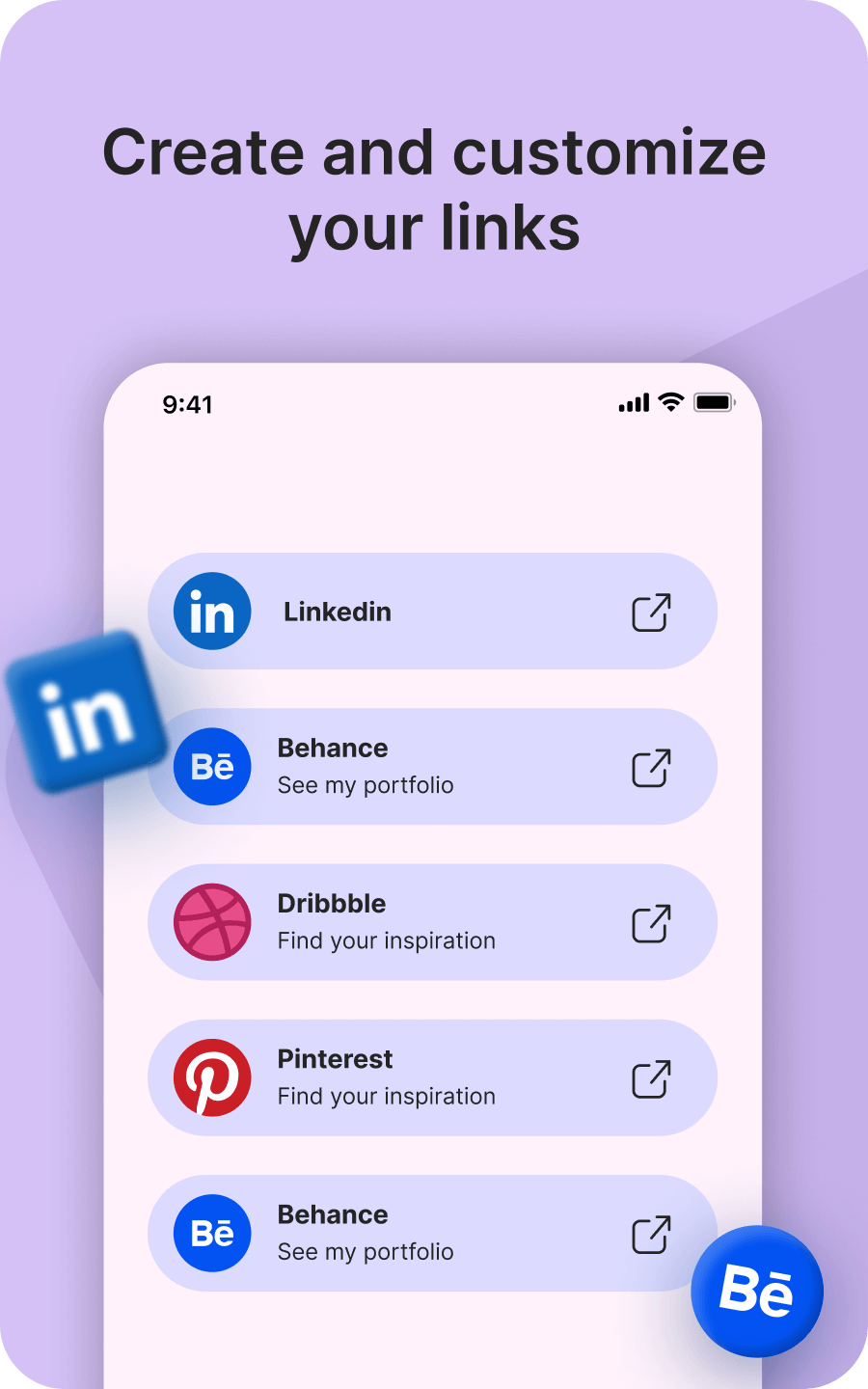
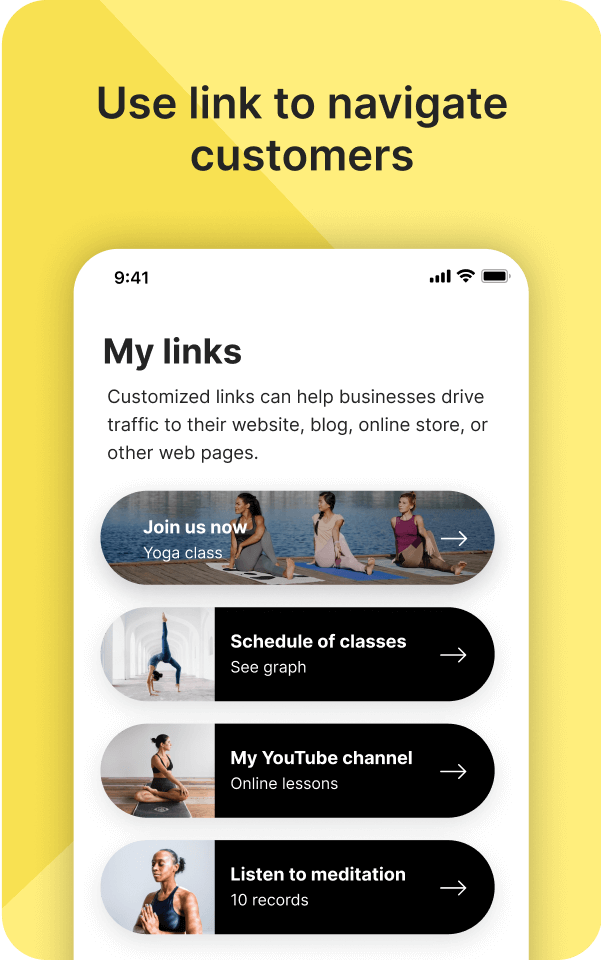
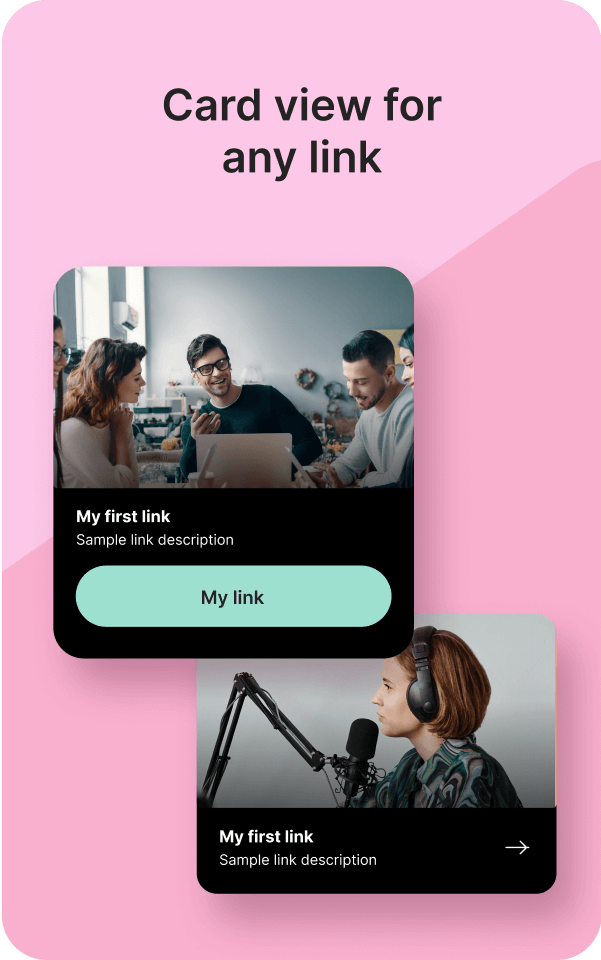
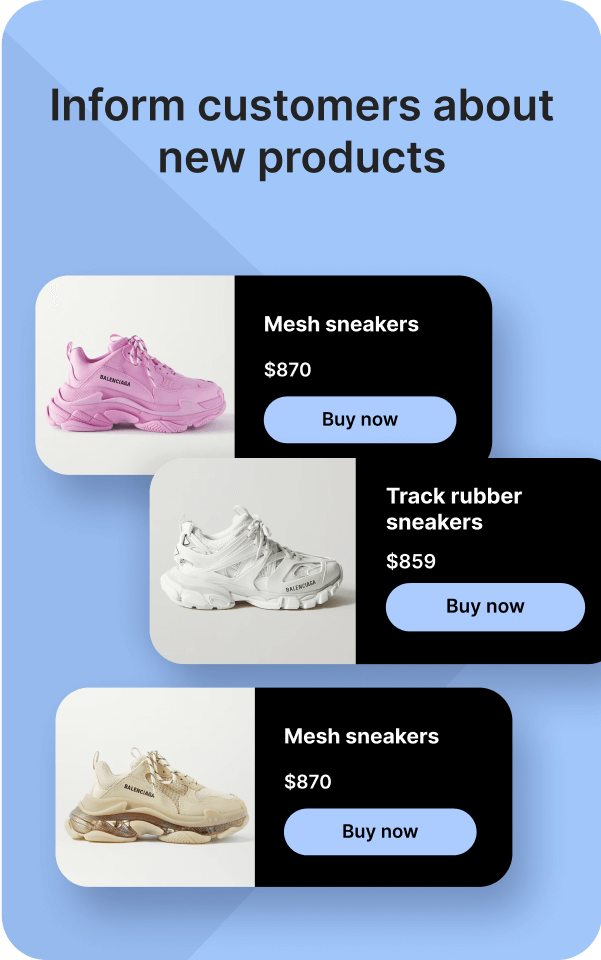
The Links Block is the original link-in-bio pattern — a vertical stack of buttons that lead visitors to your most important destinations. It is the simplest, most familiar surface for the format, and that familiarity is its strength: visitors recognize it immediately and know exactly what to do. Use it as the spine of your page, with each button pointing to one specific outcome — your latest video, your booking page, your newsletter signup, your shop. Track which buttons get clicked and which get ignored in the Analytics dashboard, then prune ruthlessly. The most effective Links Blocks have five buttons or fewer.
Use cases
Concrete patterns we see UniLink creators apply most. Pick the closest to your situation as a starting point.
Creator hub for content discovery
Send visitors to your latest YouTube video, podcast episode, blog post, or Instagram post. Order by recency or by importance. Replace the top link weekly to signal that your bio is alive — visitors who see new content reward you with more clicks.
Service business contact and booking
Coaches, consultants, freelancers — point visitors to your booking page, contact form, portfolio, and case studies. Three to four well-chosen links convert better than ten generic ones; resist the urge to list everything you offer.
Multi-platform handles
When your audience spans Instagram, TikTok, YouTube, and a podcast, the Links Block routes followers from the platform they found you on to the platform they prefer to follow on. Use platform-native button styles so visitors recognize their service.
Campaign and promo destinations
During a launch or campaign, replace your usual links with campaign-specific ones — a sale page, a free download, a webinar registration. Easy to swap back when the promo ends, and visitors during the window go exactly where you want them.
How to add this block
From marketplace install to live on your link in bio. Each step takes seconds; the writing is what takes time.
- 1
Add the block from the marketplace
In your UniLink dashboard, drop the block where visitors need to choose where to go — often near the top, where the page splits into multiple journeys.
- 2
Add destinations or pages
List the items you want visitors to navigate to — pages, external URLs, or anchor sections. Each destination becomes a tap-target on mobile.
- 3
Order by importance
Items at the top get the most clicks. Put the destination you most want visitors to pick first; lower-priority options below. Don't make visitors choose between equals.
- 4
Set descriptive labels
Replace generic labels like "Click here" with specific destinations: "Book a discovery call", "Read latest blog post". Specific labels convert better and improve accessibility.
- 5
Publish and review click-through
After publishing, watch which destinations get clicks and which get ignored. Move winners up; remove items with zero clicks for a month — they only add friction.
Best practices that move the needle
Small changes in writing or curation that consistently improve conversion.
No more than seven options
Hick's Law: choice paralysis kicks in past seven options. If you need more, group them into themes or split across pages. Long lists hurt every metric.
Strongest option first
Whatever you most want visitors to do, put it on top. Equal-weight lists make visitors hesitate; clear priority makes them act.
Verbs over nouns in labels
Action labels — "Book a call", "Get the guide" — outperform noun labels — "Calls", "Guides". Verbs tell the visitor what happens when they tap.
Test removing items
Counterintuitively, removing low-performing items often raises clicks on the remaining ones. Audit monthly: anything with under 1% click share is a candidate to cut.
Frequently asked questions
What is a Links Block in a link in bio?
A Links Block is a vertical stack of clickable buttons on your link in bio page. Each button has a label, optionally an icon or thumbnail, and a destination URL. It is the most familiar pattern in the link-in-bio format — visitors recognize it from Linktree, Beacons, and similar tools, and know exactly what to do without instructions.
How many links should I include?
Five or fewer for most use cases. Click rates drop sharply past seven (Hick's Law on choice paralysis). If you have more destinations to offer, group them into themes and use multiple Links Blocks separated by section headers, or use the Pages feature to organize destinations across multiple pages of your link in bio.
Can I customize the look of each link button?
Yes. Per-button settings include background color, text color, border radius, optional icon or image, and even animation on hover. Most users keep buttons consistent for a clean look, but you can highlight one priority button (e.g., your latest launch) with a contrasting color to draw the eye.
Can I track which links visitors click?
Yes, click tracking is built in. The Analytics dashboard shows total clicks per button, click-through rate from page visits, and trends over time. Use this data to reorder, rewrite, or remove buttons — anything with under 1% click share for two weeks is a candidate to cut.
Can I link to internal UniLink pages, not just external URLs?
Yes. Each link can point to an external URL (any HTTPS site), a different page within your UniLink link in bio (e.g., a Shop page or About page), or an anchor section on the same page. UniLink renders internal links as fast in-app navigation, not full page reloads.
Can buttons open in a new tab?
Yes, configurable per button. Default behavior opens external links in a new tab and internal links in the same tab — this matches what visitors expect. You can override per-button if you want a specific destination to behave differently.
Is the Links Block free on UniLink?
Yes. The Links Block is included on every UniLink plan, including the free tier. There are no limits on how many Links Blocks you can add or how many buttons each block contains, though we recommend keeping it short for conversion reasons.
Related blocks
Pair this block with these to build a complete page on your link in bio.
Ready to add this block?
Drop it on any UniLink page in under a minute. Customize copy, visuals, and order without touching code.
Add to UniLink — free