




Slider
Display multiple images in a rotating carousel
3.8K +
Installs
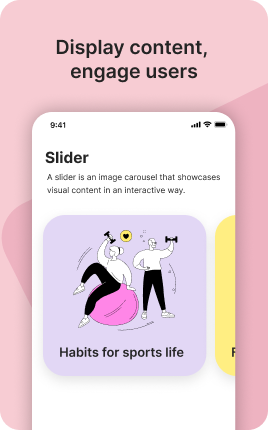
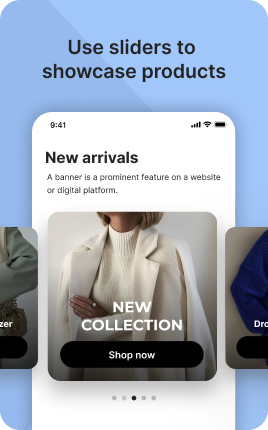
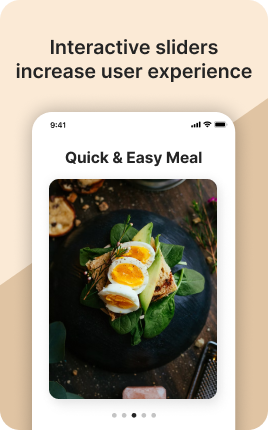

The Slider Block displays images and videos as a horizontally swipeable carousel — visitors swipe (or tap arrows) to move through the content. Where Gallery is grid-based and Video is single-clip, Slider is the right block for sequential content where order matters: a portfolio progression, before-and-after pairs, a story across several frames, or mixed media (image + video + image) in one cohesive presentation. The swipe interaction signals to visitors that there is more to explore, lifting engagement compared to a static row.
Use cases
Concrete patterns we see UniLink creators apply most. Pick the closest to your situation as a starting point.
Before-and-after sequences
Hair stylists, interior designers, fitness trainers, photographers — show transformation pairs in sequential frames. Visitors swipe to see each transformation, and the format makes the change obvious in a way side-by-side photos never quite achieve.
Portfolio storytelling
Designers, illustrators, architects — show a project in 4-6 frames that tell a story (concept → sketches → execution → final). The Slider Block presents progression in a way Gallery (which presents items as equal) cannot.
Mixed image and video
When a single visual moment is best told with mixed media — a photo of the dish, a 5-second video of the chef plating it, another photo from the table — the Slider Block handles both formats in one block.
Carousel marketing campaigns
Same content as your Instagram carousel (1: hook, 2: problem, 3: insight, 4: CTA) translated to your link in bio. Visitors who saw the carousel on Instagram see the same campaign here, with the CTA leading to a Booking, Shop, or Form Block.
How to add this block
From marketplace install to live on your link in bio. Each step takes seconds; the writing is what takes time.
- 1
Add the block from the marketplace
Open your UniLink dashboard, pick the page where the block makes sense, and add it from the marketplace. It starts with placeholder content you can replace immediately.
- 2
Replace placeholders with real copy
Generic placeholder text is what kills SEO and conversion together. Write your actual copy — short, specific, and in your own voice — before you publish.
- 3
Add visuals that match your brand
Upload icons, photos, or illustrations that fit the rest of your link in bio. Mixed visual styles make the page feel templated — pick a style and stick to it across the block.
- 4
Reorder and curate
Drag items into the order that tells your story best. Hide items you don't need yet rather than deleting — easier to bring back when seasons or campaigns change.
- 5
Publish and iterate
Hit publish and review what visitors actually click in UniLink Analytics. Items that get zero clicks for two weeks are candidates for removal or rewriting.
Best practices that move the needle
Small changes in writing or curation that consistently improve conversion.
Lead with the most important item
The first item in the block gets disproportionate attention. Use it for what matters most — newest content, biggest news, or the strongest social proof. Treat the rest as supporting.
Keep titles short and scannable
Visitors skim — they don't read. Headlines under 8 words convert better. Long titles wrap awkwardly on mobile and lose impact even when they fit.
Refresh on a cadence
Stale content signals a stale brand. Set a recurring reminder — monthly, quarterly — to audit the block and update or remove items that no longer reflect what you do now.
Match visuals to your brand
Inconsistent visual style (mix of stock, illustrations, photos) makes the page feel templated. Pick a visual approach and apply it everywhere in the block.
Frequently asked questions
What is a Slider Block in a link in bio?
A Slider Block is a horizontally-swipeable carousel of images and videos. Visitors swipe left/right (or tap arrow controls on desktop) to move through frames. Each frame can be an image or video with optional caption and link. Built for sequential content where order matters and visitors should explore each frame.
How is it different from the Gallery Block?
Gallery is a grid where all items are visible at once and visitors choose what to look at. Slider is sequential — only one frame visible at a time, visitors swipe through. Use Gallery for browsable collections; use Slider for storytelling or sequential content where order matters.
Does autoplay work?
Configurable per Slider Block. Autoplay-with-pause-on-touch is the default — slides auto-advance every few seconds, but stop when visitors interact. Disable autoplay entirely if your content rewards careful reading per frame.
How many slides should I include?
3-7 is the practical range. Below 3, no need for a carousel — just show two side by side. Above 7, visitors stop swiping. For longer sequences, split into multiple Slider Blocks separated by headers, or use the Gallery Block for browsable content instead.
Is the Slider Block free on UniLink?
Yes. The Slider Block is included on every UniLink plan, including the free tier. There are no limits on the number of slides per block.
Related blocks
Pair this block with these to build a complete page on your link in bio.
Ready to add this block?
Drop it on any UniLink page in under a minute. Customize copy, visuals, and order without touching code.
Add to UniLink — free