




Text
Write and format content using the Rich Text editor
4.3K +
Installs

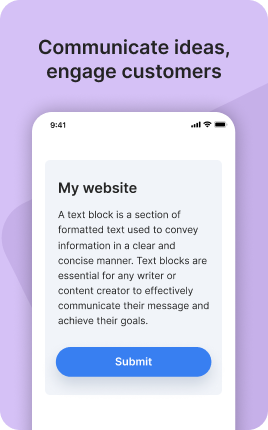
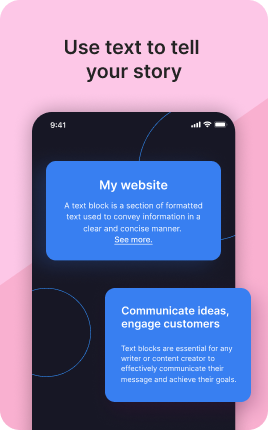

The Text Block is the simplest content block in UniLink — a free-form rich-text area where you can write anything: a quick announcement, a section header, a paragraph between other blocks, an unsubscribe note, a legal disclaimer. It supports basic formatting (bold, italic, underline, lists, links, headings) and is the universal fallback when no other specialized block fits. Use it sparingly and intentionally — the Text Block is the most flexible block, which means it's also the easiest one to abuse with content that should have been a different block.
Use cases
Concrete patterns we see UniLink creators apply most. Pick the closest to your situation as a starting point.
Section headers between blocks
Use the Text Block as a section divider — "About my work" before a Gallery, "What clients say" before a Reviews Block. Headings break long pages into scannable sections and signal what comes next.
Quick announcements
"On vacation until July 15", "New album drops Friday", "Currently booking for 2026". One-line text announcements give visitors important context without dedicating a full Banner Block.
Disclaimers and fine print
Legal disclaimers, affiliate disclosure, terms of service notes. The Text Block is the right home for required legal text that doesn't deserve a banner-level treatment.
Bridging context between sections
Two sentences of context between major blocks — "If you're here from the podcast, my booking page is below. Returning clients use the form at the bottom." This kind of bridge text guides visitors through the page logic.
How to add this block
From marketplace install to live on your link in bio. Each step takes seconds; the writing is what takes time.
- 1
Add the block from the marketplace
Open your UniLink dashboard, pick the page where the block makes sense, and add it from the marketplace. It starts with placeholder content you can replace immediately.
- 2
Replace placeholders with real copy
Generic placeholder text is what kills SEO and conversion together. Write your actual copy — short, specific, and in your own voice — before you publish.
- 3
Add visuals that match your brand
Upload icons, photos, or illustrations that fit the rest of your link in bio. Mixed visual styles make the page feel templated — pick a style and stick to it across the block.
- 4
Reorder and curate
Drag items into the order that tells your story best. Hide items you don't need yet rather than deleting — easier to bring back when seasons or campaigns change.
- 5
Publish and iterate
Hit publish and review what visitors actually click in UniLink Analytics. Items that get zero clicks for two weeks are candidates for removal or rewriting.
Best practices that move the needle
Small changes in writing or curation that consistently improve conversion.
Lead with the most important item
The first item in the block gets disproportionate attention. Use it for what matters most — newest content, biggest news, or the strongest social proof. Treat the rest as supporting.
Keep titles short and scannable
Visitors skim — they don't read. Headlines under 8 words convert better. Long titles wrap awkwardly on mobile and lose impact even when they fit.
Refresh on a cadence
Stale content signals a stale brand. Set a recurring reminder — monthly, quarterly — to audit the block and update or remove items that no longer reflect what you do now.
Match visuals to your brand
Inconsistent visual style (mix of stock, illustrations, photos) makes the page feel templated. Pick a visual approach and apply it everywhere in the block.
Frequently asked questions
What is a Text Block in a link in bio?
A Text Block is a free-form rich-text section on your link in bio page. It supports basic formatting (bold, italic, underline, lists, headings, links) and is built for any content that doesn't fit a specialized block — section headers, announcements, disclaimers, or bridge text between other blocks.
How is it different from the Overview Block?
The Overview Block is built for long-form "about" or story content — typically 150-400 words. The Text Block is for shorter, more flexible uses — headers, one-liners, fine print. Use Overview when the text IS the content; use Text when the text supports other content.
What formatting is supported?
Bold, italic, underline, strikethrough, ordered/unordered lists, blockquotes, headings (H2, H3), inline links, and basic alignment. Image embedding is not supported in the Text Block — for images, use Gallery or Slider Block. Code blocks are not supported either — for technical content with code, use the Blog Block.
Should I use Text Block for everything?
No. Specialized blocks (Features, FAQ, Reviews, Highlights) are designed for specific content types and present them better than free text. Use the Text Block only when no specialized block fits — typically for short connective text, not for primary content.
Is the Text Block free on UniLink?
Yes. The Text Block is included on every UniLink plan, including the free tier. There are no limits on the number of Text Blocks per page or content length.
Related blocks
Pair this block with these to build a complete page on your link in bio.
Ready-to-use apps in the marketplace
Try ready-made page templates built around this block — install with a single click.
Text
General text block to write anything you want
Links
Drive traffic to your website, blog, online store, or any web link
Form
Custom form to capture any information from your audience
Ask Me Anything
Let your fans submit questions — answer publicly or privately
Survey
Gather feedback and opinions from your audience with a survey
Wall
Let visitors post photos, text, or video on your page
Contacts
Allows users to communicate with you directly via contact options
Ready to add this block?
Drop it on any UniLink page in under a minute. Customize copy, visuals, and order without touching code.
Add to UniLink — free