




Timer
A dynamic countdown timer that boosts sales
2.5K +
Installs
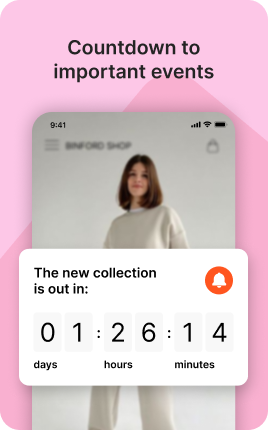
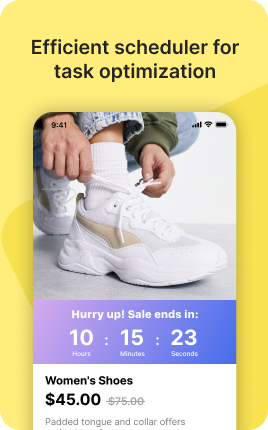


The Timer Block displays a live countdown to a future date and time — a launch, sale ending, event start, registration deadline. The visible decreasing time creates urgency that flat dates ("ends Sunday") can't match: visitors see seconds tick by, which makes the deadline emotionally real. Pair the Timer Block with a CTA that the timer is counting toward, and the urgency converts directly into action.
Use cases
Concrete patterns we see UniLink creators apply most. Pick the closest to your situation as a starting point.
Launch countdown
Counting down to a product launch — visitors see "08 days, 14 hours, 32 minutes". The visible countdown builds anticipation and primes purchase the moment it hits zero.
Sale ending soon
"50% off — ends in 03:14:22". The most urgent few hours of any sale convert dramatically higher when the timer is visible. Without it, visitors think "I'll come back later" and don't.
Registration deadline
For workshops, courses, retreats — countdown to registration close. Combined with limited capacity ("12 spots left"), this is the highest-converting framing for cohort-based offerings.
Limited-time offer
Flash deals, hourly drops, 24-hour bundle offers — the Timer Block makes the time-bound nature visceral. After the timer hits zero, the offer expires and the block transitions to a "next time" call-to-action.
How to add this block
From marketplace install to live on your link in bio. Each step takes seconds; the writing is what takes time.
- 1
Add the block to your page
Open the UniLink dashboard, choose the page that should accept bookings, and drag the block in from the marketplace. The default state is preview — no bookings until you finish setup.
- 2
Connect your calendar
Sync Google Calendar, Outlook, or iCal so existing events become unavailable slots. This prevents double-bookings without you manually blocking time after every personal meeting.
- 3
Define availability and slot length
Set the days and hours you accept bookings, the length of each slot, and any buffer between slots. Buffers prevent back-to-back exhaustion and give you a transition window.
- 4
Add intake questions or payment
Optionally collect a short form or upfront payment when someone books. For paid bookings, connect Stripe/PayPal in Settings → Payments first.
- 5
Publish and share the link
Publish the page, share the link in your bio or campaign, and watch confirmed bookings flow into your calendar. UniLink Analytics shows booking-to-show-up rate so you can spot drop-off.
Best practices that move the needle
Small changes in writing or curation that consistently improve conversion.
Show price upfront, not at checkout
If your service costs money, name the price near the booking button. Hidden pricing kills conversion — visitors who reach checkout and see an unexpected number tend to bounce.
Limit slot choices to reduce paralysis
Offering "any time you want" overwhelms visitors. Pre-filter to 6-12 sensible slots over the next two weeks. Bookings rise when the choice feels manageable.
Confirm by email AND SMS
No-shows drop sharply when you confirm by both channels. UniLink can trigger both automatically when a booking is made and 24h before the appointment.
Cancel policy in plain language
State your cancel window upfront ("free cancel 24h before, otherwise 50% charge"). Visitors who know the rule before booking are far less likely to no-show.
Frequently asked questions
What is a Timer Block in a link in bio?
A Timer Block displays a live countdown to a future date and time. The countdown updates in real time on the visitor's screen, showing days, hours, minutes, and seconds until the target moment. After the timer hits zero, the block transitions to a configurable "post-deadline" state.
What happens after the timer reaches zero?
Configurable per Timer Block: hide the block, show a "Time's up" message, redirect to a different CTA, or switch to a "Next time" subscription form. Most users go with "Next time" subscription so missed-deadline visitors still convert into future-customer leads.
How is it different from the Promo Bar Block?
Promo Bar Block is a sticky banner with text + CTA — the timer is one optional element. Timer Block is the timer as the primary content, prominently displayed in the page flow. Use Promo Bar for general announcements with optional countdown; use Timer when the countdown itself is the message.
Will the timer work in all timezones?
Yes. Set the target in your local timezone in block settings; visitors see the countdown in their own local time automatically. A 9 PM ET launch shows visitors in PT as "6 PM tonight" without any manual conversion.
Is the Timer Block free on UniLink?
Yes. The Timer Block is included on every UniLink plan, including the free tier. PRO plans add advanced features like recurring timers (e.g., for daily flash sales) and audience-segmented variants.
Related blocks
Pair this block with these to build a complete page on your link in bio.
Ready-to-use apps in the marketplace
Try ready-made page templates built around this block — install with a single click.
Countdown
Count down to a launch, drop or deadline on its own page
Data Collect
Collect emails or phone numbers from your visitors
Email Subscribe
Grow your email list — let visitors subscribe to your newsletter
Waitlist
Build a waitlist for your upcoming product, event or launch
Lead Magnet
Offer a free resource in exchange for an email — guide, checklist, template
Quiz Funnel
Ask a few questions, give a personal recommendation, and tag the lead
Skin Type Finder
Let people find their skin type — and the products that suit it
Ready to add this block?
Drop it on any UniLink page in under a minute. Customize copy, visuals, and order without touching code.
Add to UniLink — free