




FAQ
Host a list of questions and answers
3.4K +
Installs
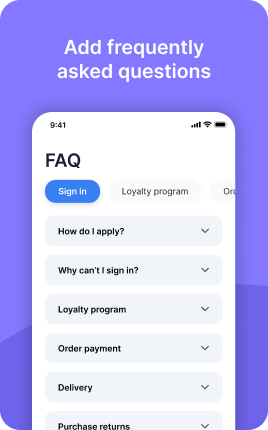
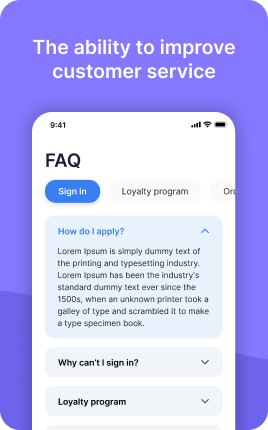
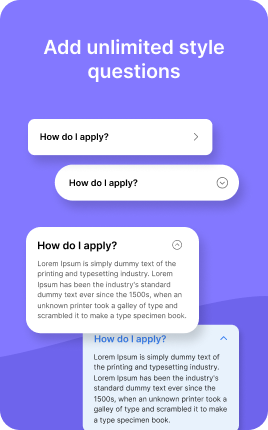
The FAQ Block answers the questions visitors actually have, in the order they have them, before they ever ask. Done well, it removes the most common objections that block conversion — about price, process, timeline, eligibility — and earns you FAQ rich results in Google search, which can double click-through rate from search listings. Each question is collapsible, so the block stays visually compact even with seven or eight items, and the underlying Schema.org FAQPage markup is generated automatically by UniLink so search engines understand the structure without you writing any code.
Use cases
Concrete patterns we see UniLink creators apply most. Pick the closest to your situation as a starting point.
E-commerce returns and shipping policy
Answer the questions every online buyer asks before checkout: shipping timelines, return windows, exchange policy, customs and duties for international orders. Visibly answering these reduces support emails and lifts conversion because visitors don't bounce to find the answers elsewhere.
Service business pricing and process
Coaches, agencies, freelancers — answer "how much does it cost", "how long does it take", "what's included", "what do I need to provide". Visitors who can pre-qualify themselves convert better; visitors who can't bounce silently or send unqualified inquiries.
Course and program requirements
Online educators — answer who the course is for, prerequisites, time commitment per week, certification details, refund policy. The FAQ Block does the qualification work for you, so you only get students who already know they're a fit.
Event and workshop logistics
Workshops, retreats, conferences — answer location and parking, what to bring, dietary accommodations, recording availability, refund and transfer policy. Reduces day-of confusion and refund requests, both of which eat into your time and margins.
How to add this block
From marketplace install to live on your link in bio. Each step takes seconds; the writing is what takes time.
- 1
Add the block from the marketplace
Open your UniLink dashboard, pick the page where the block makes sense, and add it from the marketplace. It starts with placeholder content you can replace immediately.
- 2
Replace placeholders with real copy
Generic placeholder text is what kills SEO and conversion together. Write your actual copy — short, specific, and in your own voice — before you publish.
- 3
Add visuals that match your brand
Upload icons, photos, or illustrations that fit the rest of your link in bio. Mixed visual styles make the page feel templated — pick a style and stick to it across the block.
- 4
Reorder and curate
Drag items into the order that tells your story best. Hide items you don't need yet rather than deleting — easier to bring back when seasons or campaigns change.
- 5
Publish and iterate
Hit publish and review what visitors actually click in UniLink Analytics. Items that get zero clicks for two weeks are candidates for removal or rewriting.
Best practices that move the needle
Small changes in writing or curation that consistently improve conversion.
Lead with the most important item
The first item in the block gets disproportionate attention. Use it for what matters most — newest content, biggest news, or the strongest social proof. Treat the rest as supporting.
Keep titles short and scannable
Visitors skim — they don't read. Headlines under 8 words convert better. Long titles wrap awkwardly on mobile and lose impact even when they fit.
Refresh on a cadence
Stale content signals a stale brand. Set a recurring reminder — monthly, quarterly — to audit the block and update or remove items that no longer reflect what you do now.
Match visuals to your brand
Inconsistent visual style (mix of stock, illustrations, photos) makes the page feel templated. Pick a visual approach and apply it everywhere in the block.
Frequently asked questions
What is an FAQ Block in a link in bio?
An FAQ Block is a list of expandable question-and-answer pairs on your link in bio page. Each question shows as a clickable header; tapping reveals the answer. The block keeps the page visually compact while delivering substantial helpful content, and the underlying Schema.org FAQPage markup makes the questions eligible for FAQ rich results in Google search.
How many questions should I include?
5-8 is the practical sweet spot. Fewer than 5 looks underdone and misses the search-engine benefit; more than 8 turns into a wall of text that visitors scroll past. If you have more questions to address, group by theme and use multiple FAQ Blocks — for example, "Pricing FAQ" and "Process FAQ" as separate blocks.
Will the FAQ Block help my SEO?
Yes, in two ways. First, the FAQ Block injects Schema.org FAQPage markup into the page automatically, which Google reads to potentially show your questions as expandable rich results in search listings — these dramatically increase click-through rate. Second, the answer text adds keyword-rich content to your link in bio, helping the page rank for long-tail questions visitors actually search.
How do I write good FAQ questions?
Write the questions in the visitor's voice, exactly as they would type them into Google. "How long does shipping take?" beats "Shipping timeline." Use specific numbers ("Within 5-7 business days for US, 10-14 for international") rather than vague phrases ("Quickly!"). Specific answers convert; vague ones leave visitors hunting.
Can the FAQ Block link out to longer answers?
Yes. Each answer supports rich text including links, so when a question deserves a longer treatment than fits in the FAQ format, link to a blog post, knowledge-base article, or PDF. Keep the inline answer to the essentials and let the link carry the depth for visitors who want it.
Where should I place the FAQ Block on my page?
Near the bottom of the page, after the primary call-to-action and supporting blocks. Visitors who reach the FAQ are typically already considering action — they need their last objections answered before clicking. Putting the FAQ above the CTA forces every visitor through the questions, which delays conversion for visitors who didn't need them.
Is the FAQ Block free on UniLink?
Yes. The FAQ Block is included on every UniLink plan, including the free tier. There are no limits on the number of FAQ Blocks per page or questions per block, though we recommend keeping each block focused for visitor experience and search engine clarity.
Related blocks
Pair this block with these to build a complete page on your link in bio.
Ready-to-use apps in the marketplace
Try ready-made page templates built around this block — install with a single click.
FAQ
Frequently Asked Questions — used to refer to a list of answers
Text
General text block to write anything you want
Links
Drive traffic to your website, blog, online store, or any web link
Form
Custom form to capture any information from your audience
Ask Me Anything
Let your fans submit questions — answer publicly or privately
Survey
Gather feedback and opinions from your audience with a survey
Wall
Let visitors post photos, text, or video on your page
Ready to add this block?
Drop it on any UniLink page in under a minute. Customize copy, visuals, and order without touching code.
Add to UniLink — free