




Blog
Publish posts or articles on your website
2.2K +
Installs
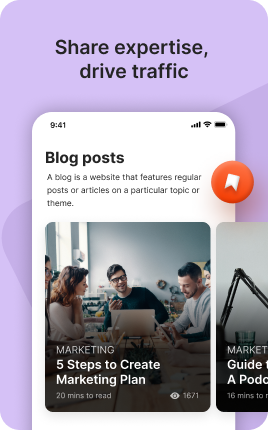
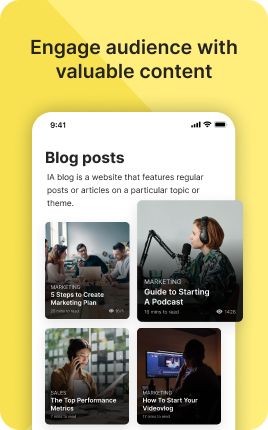
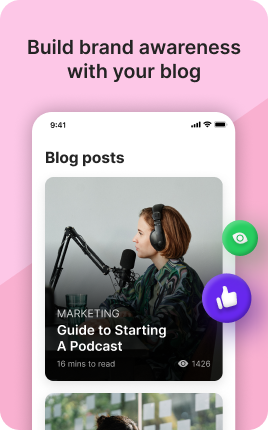
The Blog Block makes your link in bio a publishing surface, not just a navigation page. Write articles directly in UniLink — formatted text, images, code, embeds — and they appear in a chronological feed visitors browse and read in-place. The Blog Block builds long-term SEO authority that links-out-to-Medium will never give you, because the content lives on your domain. For creators serious about owning their audience, blogging on UniLink complements the link-in-bio surface with searchable, indexable depth.
Use cases
Concrete patterns we see UniLink creators apply most. Pick the closest to your situation as a starting point.
Creator content hub
Long-form essays, photo journals, weekly recaps — write directly in UniLink and publish to your link in bio. The content lives at unil.ink/yourname/blog/article-slug, builds backlinks over time, and ranks for niche searches that bring new audience to your bio organically.
Newsletter archive and SEO
If you publish a paid or free newsletter, mirror the public-tier articles in the Blog Block so search engines can index them. New readers find your work through Google instead of needing to already know your newsletter exists.
Coach and consultant thought leadership
Coaches, consultants, agencies — establish authority by publishing case studies, methodology breakdowns, industry takes. Prospects who read 2-3 blog posts before booking a discovery call arrive far better qualified than cold leads.
Restaurant and small-business news
Local businesses — menu changes, new staff, seasonal events, behind-the-scenes recipes. The Blog Block keeps the bio page feeling alive between major site updates and signals to Google that the business is active, lifting local search rankings over time.
How to add this block
From marketplace install to live on your link in bio. Each step takes seconds; the writing is what takes time.
- 1
Add the block from the marketplace
Open your UniLink dashboard, pick the page where the block makes sense, and add it from the marketplace. It starts with placeholder content you can replace immediately.
- 2
Replace placeholders with real copy
Generic placeholder text is what kills SEO and conversion together. Write your actual copy — short, specific, and in your own voice — before you publish.
- 3
Add visuals that match your brand
Upload icons, photos, or illustrations that fit the rest of your link in bio. Mixed visual styles make the page feel templated — pick a style and stick to it across the block.
- 4
Reorder and curate
Drag items into the order that tells your story best. Hide items you don't need yet rather than deleting — easier to bring back when seasons or campaigns change.
- 5
Publish and iterate
Hit publish and review what visitors actually click in UniLink Analytics. Items that get zero clicks for two weeks are candidates for removal or rewriting.
Best practices that move the needle
Small changes in writing or curation that consistently improve conversion.
Lead with the most important item
The first item in the block gets disproportionate attention. Use it for what matters most — newest content, biggest news, or the strongest social proof. Treat the rest as supporting.
Keep titles short and scannable
Visitors skim — they don't read. Headlines under 8 words convert better. Long titles wrap awkwardly on mobile and lose impact even when they fit.
Refresh on a cadence
Stale content signals a stale brand. Set a recurring reminder — monthly, quarterly — to audit the block and update or remove items that no longer reflect what you do now.
Match visuals to your brand
Inconsistent visual style (mix of stock, illustrations, photos) makes the page feel templated. Pick a visual approach and apply it everywhere in the block.
Frequently asked questions
What is a Blog Block in a link in bio?
A Blog Block is a publishing surface inside your UniLink link in bio. You write articles using a rich-text editor (formatting, images, code blocks, embeds), and each article gets its own URL like unil.ink/yourname/blog/your-article-slug. Visitors browse the chronological feed on your bio, click into articles, read in place, and (if you ask) subscribe to be notified of new posts.
Why blog on UniLink instead of Medium or Substack?
Two reasons: ownership and SEO. Articles on Medium or Substack live on their domain, not yours — Medium's SEO weight is theirs to use. Articles in the Blog Block live on unil.ink/yourname, which builds your domain's authority over time. Plus, you keep 100% of newsletter subscribers as your direct contacts, not the platform's.
Does the Blog Block support rich formatting?
Yes. The editor supports headings, bold/italic, lists, blockquotes, code blocks (with syntax highlighting), inline images, embedded YouTube/Vimeo, Twitter/X embeds, and inline links. For most articles, the formatting available matches what you'd find in Notion or Substack.
How does SEO work for blog posts?
Each article generates an SEO-optimized page with proper title, description, canonical URL, and structured data (Article schema). UniLink's sitemap automatically lists published articles so Google can crawl them. Quality of the article (real depth, not thin) determines whether it ranks — the technical SEO is handled for you.
Can I have multiple blog channels?
Yes. Create separate channels for different topics — e.g., "Behind the scenes" and "Tutorials" — and place them on different pages of your link in bio. Visitors interested in one topic can browse without scrolling through unrelated posts. Each channel has its own URL prefix and RSS feed.
Can readers subscribe to be notified of new posts?
Yes. Pair the Blog Block with a Form Block ("Get notified of new posts") that pipes subscribers to your email service. UniLink does NOT have built-in newsletter delivery — bring your own (Mailchimp, Reply, ConvertKit, Buttondown). The Form Block hands subscribers off cleanly.
Is the Blog Block free on UniLink?
Yes. The Blog Block is included on every UniLink plan, including the free tier. There are no limits on the number of articles, channels, or word count. PRO plans add advanced features like scheduled publishing, member-only posts (for paid newsletters), and detailed engagement analytics.
Related blocks
Pair this block with these to build a complete page on your link in bio.
Ready-to-use apps in the marketplace
Try ready-made page templates built around this block — install with a single click.
Blog
Create blog of your posts
Text
General text block to write anything you want
Links
Drive traffic to your website, blog, online store, or any web link
Form
Custom form to capture any information from your audience
Ask Me Anything
Let your fans submit questions — answer publicly or privately
Survey
Gather feedback and opinions from your audience with a survey
Wall
Let visitors post photos, text, or video on your page
Ready to add this block?
Drop it on any UniLink page in under a minute. Customize copy, visuals, and order without touching code.
Add to UniLink — free