




Twitch
Integrate live streams, past broadcasts
4K +
Installs
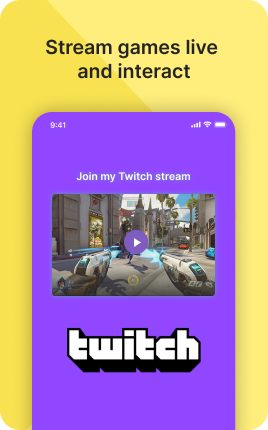
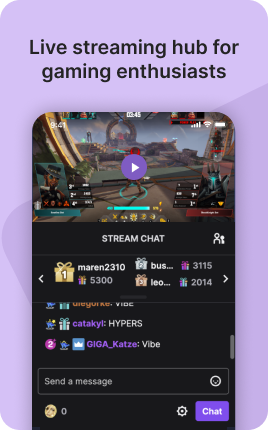
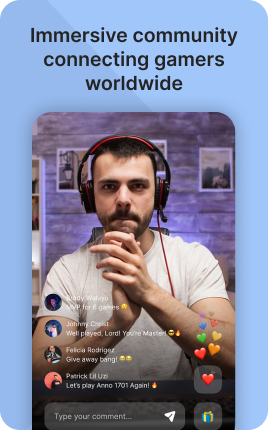
The Twitch Block embeds your live stream or recent VODs directly on your link in bio. When you're live, the block shows the live indicator and visitors can watch the stream right from your bio. When you're offline, it shows your most recent VOD or a custom offline screen. Streamers who add this block to their bio capture follows from the audience overflow that doesn't make it to Twitch directly — friends sharing the bio, mobile visitors clicking through from social.
Use cases
Concrete patterns we see UniLink creators apply most. Pick the closest to your situation as a starting point.
Live stream embed
When live, the block shows your stream right on your link in bio. Visitors watch in place and can tap through to follow on Twitch. Especially useful when promoting streams on Instagram or TikTok where direct Twitch links are limited.
Recent VOD showcase
When offline, the block highlights your most recent stream as a watchable VOD. New visitors get a sample of your stream content even if they missed the live session.
Custom offline screen
Set a custom offline image with your schedule or tagline. When you're not streaming, the block stays visually anchored instead of disappearing or showing a generic offline state.
Schedule and notifications
Pair the Twitch Block with a schedule (next stream Tuesday 8pm) and a Form Block for stream-time email reminders. Casual viewers convert into reliable audience this way.
How to add this block
From marketplace install to live on your link in bio. Each step takes seconds; the writing is what takes time.
- 1
Add the block from the marketplace
In your UniLink dashboard, drop the block onto the page where your audience expects to find your content. Most creators put it directly under the hero.
- 2
Connect or paste your account link
Authenticate the social account if the block supports auto-feed, otherwise paste your profile URL. Auto-feed pulls the latest posts on a schedule — no manual updates.
- 3
Choose layout and post count
Grid, slider, or list — pick the layout that works with your other blocks visually. Show 6-9 most recent posts; more clutters, fewer looks empty.
- 4
Set the call-to-action
Add a clear button below the feed: "Follow on Instagram", "Subscribe on YouTube". Visitors who like what they see should know where to go next without scrolling.
- 5
Publish and watch traffic flow
The block now bridges your link in bio with your platform. Track click-through to your social profile in Analytics and adjust position if it underperforms.
Best practices that move the needle
Small changes in writing or curation that consistently improve conversion.
Show your best, not your latest
Auto-feed shows the latest, but if your latest post is weak, it hurts the bio page. Pin or curate your best 6-9 posts — these set the impression for new visitors.
Match the platform's visual language
Instagram-style square crops, TikTok's vertical aspect, YouTube's thumbnail format — visitors recognize and trust content that looks native. Don't fight the platform's norms.
One platform per block
Mixing Instagram, TikTok, and YouTube in one feed dilutes attention. Use a separate block per platform so visitors see a strong stream of one type instead of a confused mix.
Refresh the call-to-action quarterly
Static "Follow me" gets ignored over time. Rotate to specific CTAs ("New post tomorrow at 3pm", "Live in 2 hours") that signal activity and create urgency.
Frequently asked questions
What is a Twitch Block in a link in bio?
A Twitch Block embeds your Twitch stream on your link in bio page. When live, visitors can watch the stream directly in the embed. When offline, the block displays your most recent VOD or a custom offline screen with your schedule and follow button.
Does the embedded stream count toward my view count?
Yes — embedded views generally count toward Twitch metrics. Bio-driven views are a useful supplement to direct platform traffic, especially when your audience first finds you on TikTok or YouTube and crosses over to Twitch via your bio.
Can I show specific past VODs instead of the latest?
Yes. In block settings, choose "auto" (latest VOD), "manual" (specific VOD URL), or "custom" (offline screen with no VOD). Manual selection is useful for showcasing your best content.
How does the block know when I go live?
The block authenticates with Twitch and updates within 1-2 minutes of you going live. Visitors who land on your bio while you're streaming see the live state automatically — no manual toggle needed.
Is the Twitch Block free on UniLink?
Yes. The Twitch Block is included on every UniLink plan, including the free tier. PRO plans add advanced features like custom offline analytics and automatic VOD-of-the-week selection.
Related blocks
Pair this block with these to build a complete page on your link in bio.
Ready-to-use apps in the marketplace
Try ready-made page templates built around this block — install with a single click.
Twitch
Embed Twitch video or stream on your page
Music Links
Share your track on all platforms — Spotify, Apple Music, YouTube
Podcasts
Promote and monetize your podcast episodes
Feature your best Instagram media and video or sell your products
TikTok
Feature your best TikTok video or sell your products with a TikTok page
YouTube
Feature a YouTube video or stream on your page
Music
Embed Spotify, SoundCloud song, playlist or upload your own audio
Ready to add this block?
Drop it on any UniLink page in under a minute. Customize copy, visuals, and order without touching code.
Add to UniLink — free