




YouTube
Embed YouTube channel's content
3K +
Installs
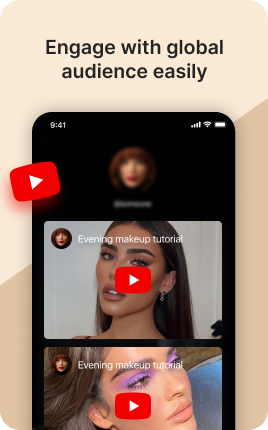
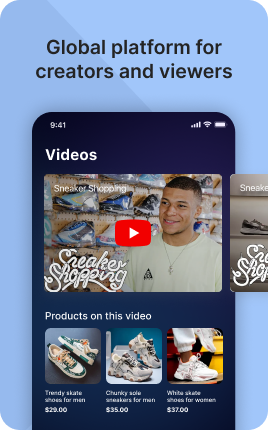
The YouTube Block brings your YouTube content directly into your link in bio — latest video, popular uploads, channel feed, or specific playlists. Unlike linking out to YouTube (where viewers have to come back), the YouTube Block lets visitors watch in place and discover more of your content right next to your other bio blocks. Watch time on embedded YouTube videos counts toward your channel's YouTube algorithm metrics, so the bio embed is genuinely good for both visitor experience and platform growth.
Use cases
Concrete patterns we see UniLink creators apply most. Pick the closest to your situation as a starting point.
Latest video embed
Auto-embed your most recent upload. Visitors arriving from any platform see your newest content as the default action — and YouTube's algorithm benefits from the additional watch time.
Most-popular videos showcase
Curate your top 3-5 most-viewed videos. New visitors get your strongest content first instead of whatever you uploaded yesterday — important if recent uploads are weaker than your evergreen hits.
Specific playlist embed
Embed a curated playlist (your "start here" series, a course, a topical collection). Visitors discover sequenced content rather than browsing randomly.
Channel preview with subscribe CTA
Show channel name, subscriber count, and a clear "Subscribe" button. Especially useful when visitors arrive from non-YouTube platforms and need a clear path to subscribe.
How to add this block
From marketplace install to live on your link in bio. Each step takes seconds; the writing is what takes time.
- 1
Add the block from the marketplace
In your UniLink dashboard, drop the block onto the page where your audience expects to find your content. Most creators put it directly under the hero.
- 2
Connect or paste your account link
Authenticate the social account if the block supports auto-feed, otherwise paste your profile URL. Auto-feed pulls the latest posts on a schedule — no manual updates.
- 3
Choose layout and post count
Grid, slider, or list — pick the layout that works with your other blocks visually. Show 6-9 most recent posts; more clutters, fewer looks empty.
- 4
Set the call-to-action
Add a clear button below the feed: "Follow on Instagram", "Subscribe on YouTube". Visitors who like what they see should know where to go next without scrolling.
- 5
Publish and watch traffic flow
The block now bridges your link in bio with your platform. Track click-through to your social profile in Analytics and adjust position if it underperforms.
Best practices that move the needle
Small changes in writing or curation that consistently improve conversion.
Show your best, not your latest
Auto-feed shows the latest, but if your latest post is weak, it hurts the bio page. Pin or curate your best 6-9 posts — these set the impression for new visitors.
Match the platform's visual language
Instagram-style square crops, TikTok's vertical aspect, YouTube's thumbnail format — visitors recognize and trust content that looks native. Don't fight the platform's norms.
One platform per block
Mixing Instagram, TikTok, and YouTube in one feed dilutes attention. Use a separate block per platform so visitors see a strong stream of one type instead of a confused mix.
Refresh the call-to-action quarterly
Static "Follow me" gets ignored over time. Rotate to specific CTAs ("New post tomorrow at 3pm", "Live in 2 hours") that signal activity and create urgency.
Frequently asked questions
What is a YouTube Block in a link in bio?
A YouTube Block embeds YouTube content (videos, playlists, or channel preview) directly on your link in bio page. Visitors watch in place using the standard YouTube embed and tap through to subscribe when they want to follow your channel.
Does watch time on the embed count toward my channel?
Yes. YouTube's algorithm counts watch time on embedded videos toward your channel's overall metrics. The bio embed is a small but real boost to your YouTube growth, especially if you drive traffic to bio from non-YouTube platforms.
Can I embed an entire playlist?
Yes. Paste a playlist URL and the YouTube Block embeds the playlist with auto-progress between videos. Useful for sequential content like courses or "start here" series.
How is it different from the Video Block?
The Video Block is generic — supports YouTube, Vimeo, and self-hosted MP4 with a single video focus. The YouTube Block is specialized for YouTube — supports playlists, channel embeds, and YouTube-native features like "subscribe with bell" CTAs. Use Video Block for one-off video content; use YouTube Block when YouTube is your primary platform.
Is the YouTube Block free on UniLink?
Yes. The YouTube Block is included on every UniLink plan, including the free tier. PRO plans add advanced features like automatic playlist filtering, channel-stats display, and embed-conversion analytics.
Related blocks
Pair this block with these to build a complete page on your link in bio.
Ready-to-use apps in the marketplace
Try ready-made page templates built around this block — install with a single click.
YouTube
Feature a YouTube video or stream on your page
Music Links
Share your track on all platforms — Spotify, Apple Music, YouTube
Podcasts
Promote and monetize your podcast episodes
Feature your best Instagram media and video or sell your products
TikTok
Feature your best TikTok video or sell your products with a TikTok page
Music
Embed Spotify, SoundCloud song, playlist or upload your own audio
Twitch
Embed Twitch video or stream on your page
Ready to add this block?
Drop it on any UniLink page in under a minute. Customize copy, visuals, and order without touching code.
Add to UniLink — free